I. What Is Smart Campaign?
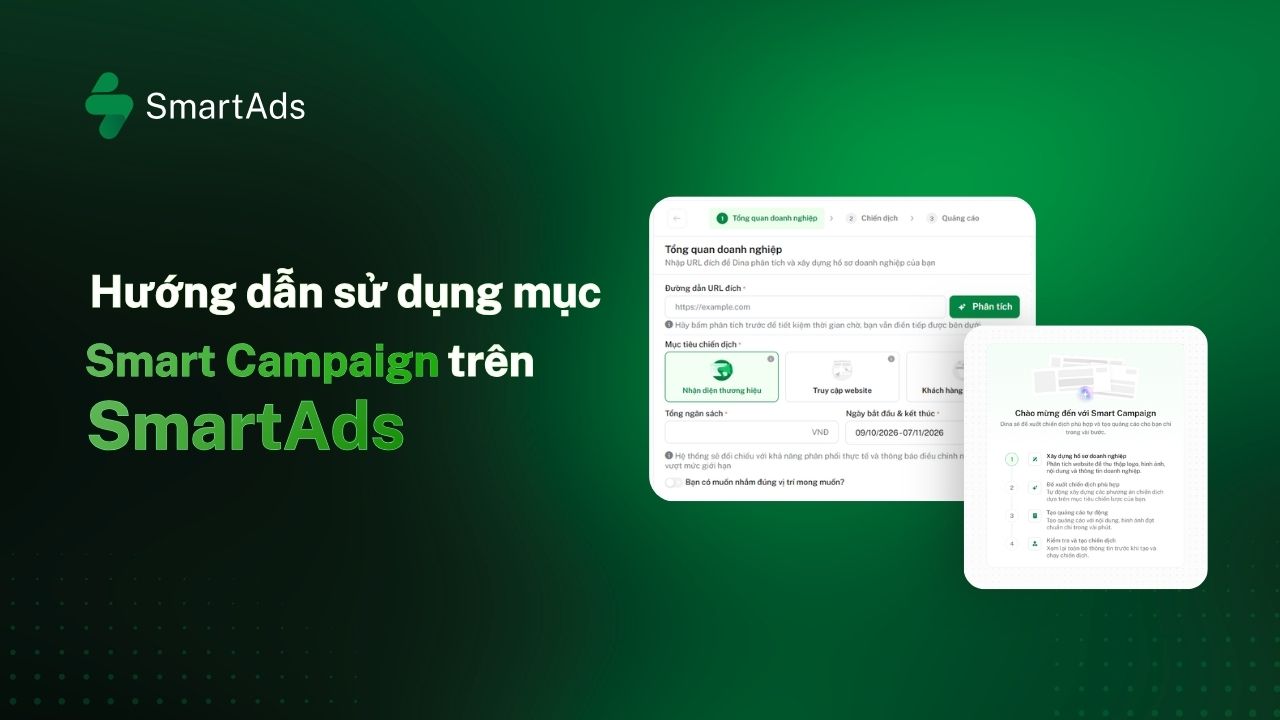
Smart Campaign is a feature that helps automate the campaign creation process on SmartAds. Based on the Landing Page (LDP), budget, and advertising objectives provided by the advertiser, the system can build a business profile, recommend targeting strategies to maximize performance within the allocated budget, and suggest ad creatives for the advertiser to review and select before launching the campaign.
It is important to note that this feature does not completely replace the advertiser during the setup process. Users can still review information, select targeting options or creatives, and confirm the campaign before it is submitted to the system.
II. Key Features
-
Fast Campaign Setup: Streamlines the campaign creation process, reduces manual tasks, and saves setup time.
-
AI-Powered Campaign Recommendations: Analyzes the Landing Page, budget, and advertising objectives to recommend suitable targeting options and campaign strategies.
-
Campaign Feasibility Assessment: The AI assistant provides recommendations and assessments to help advertisers evaluate campaign suitability before launch.
-
Flexible Control and Optimization: Advertisers can review information, select creatives, adjust targeting, and confirm the campaign before implementation.
III. How to Create a Smart Campaign on SmartAds
Smart Campaign helps advertisers streamline campaign setup by automatically analyzing websites, recommending campaign strategies, and generating ad content. Below are the steps for creating a campaign on the SmartAds platform.
Step 1: Enter the Website URL and Build a Business Profile
Access the Smart Campaign feature on SmartAds and enter the business website URL. Select “Analyze” to allow the system to gather information from the website and build a business profile.
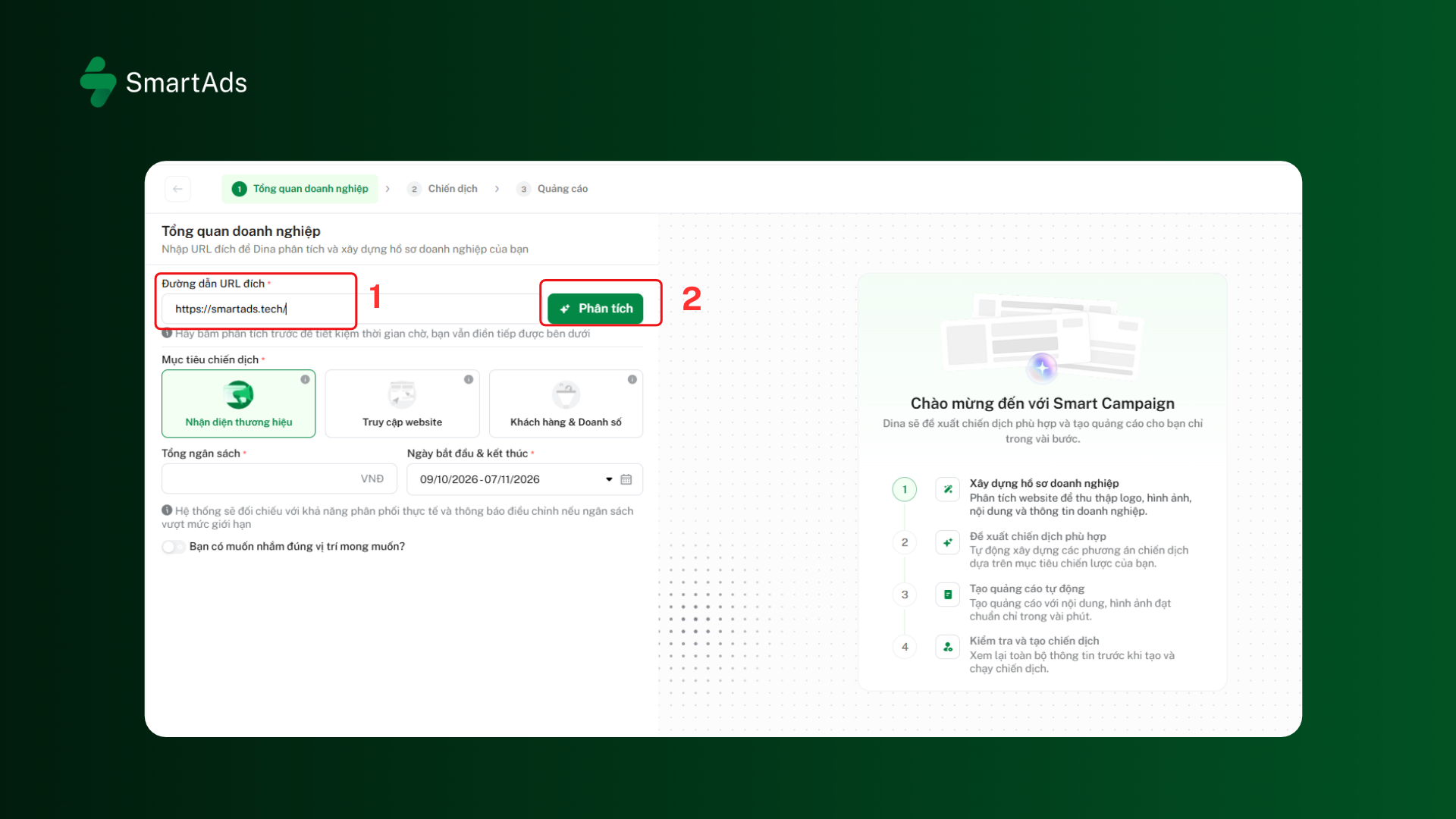
Once the process is complete, advertisers can review the suggested information, including images, industry, keywords, and geographic locations. The information can be adjusted if necessary before proceeding to the next step.
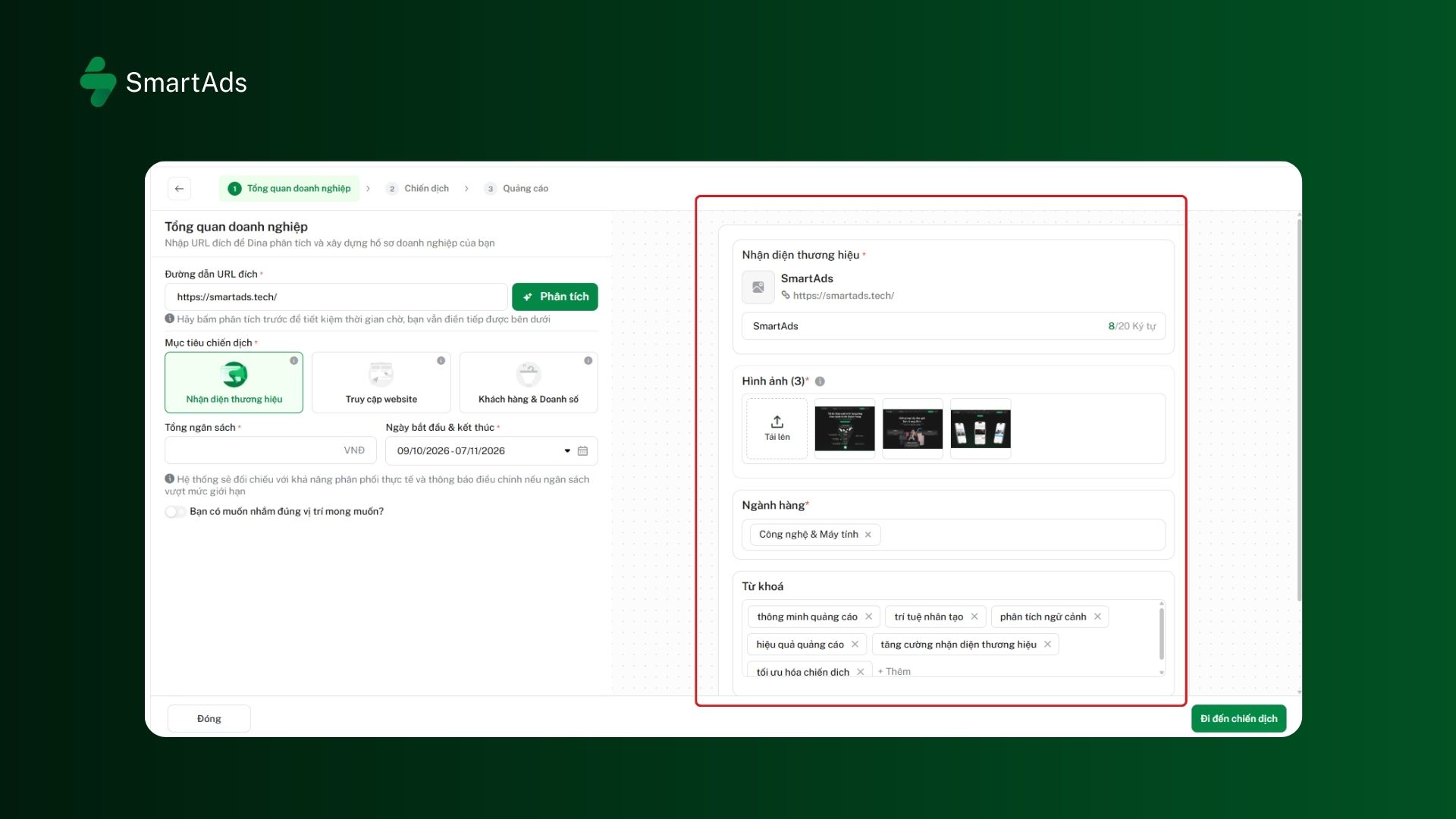
Step 2: Select Campaign Objectives and Configure the Campaign
After completing the business profile, advertisers can select the objective that best matches their advertising needs. Smart Campaign currently supports three objectives:
-
Brand Awareness: Increase brand awareness.
-
Website Traffic: Attract users to visit the website.
-
Leads & Sales: Focus on generating leads and driving sales.
Next, configure the required campaign details, such as budget and campaign duration. The system may display warnings if the budget or setup information is not suitable for the campaign's delivery capabilities. Advertisers should review and adjust these settings before proceeding.
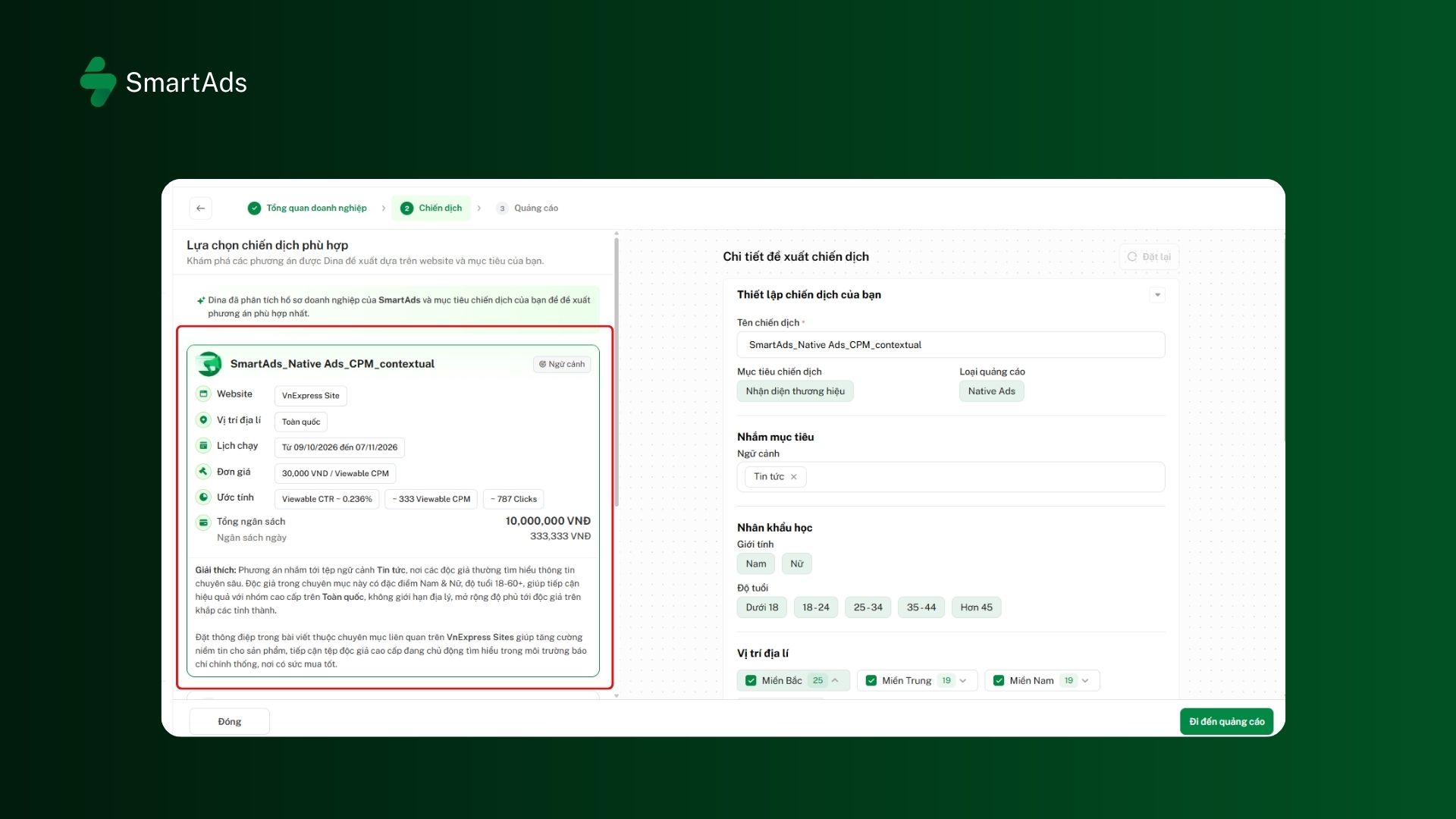
Step 3: Select the Recommended Ad Creatives
Based on the business information and campaign settings, Smart Campaign automatically generates ad creatives for advertisers to review and select.
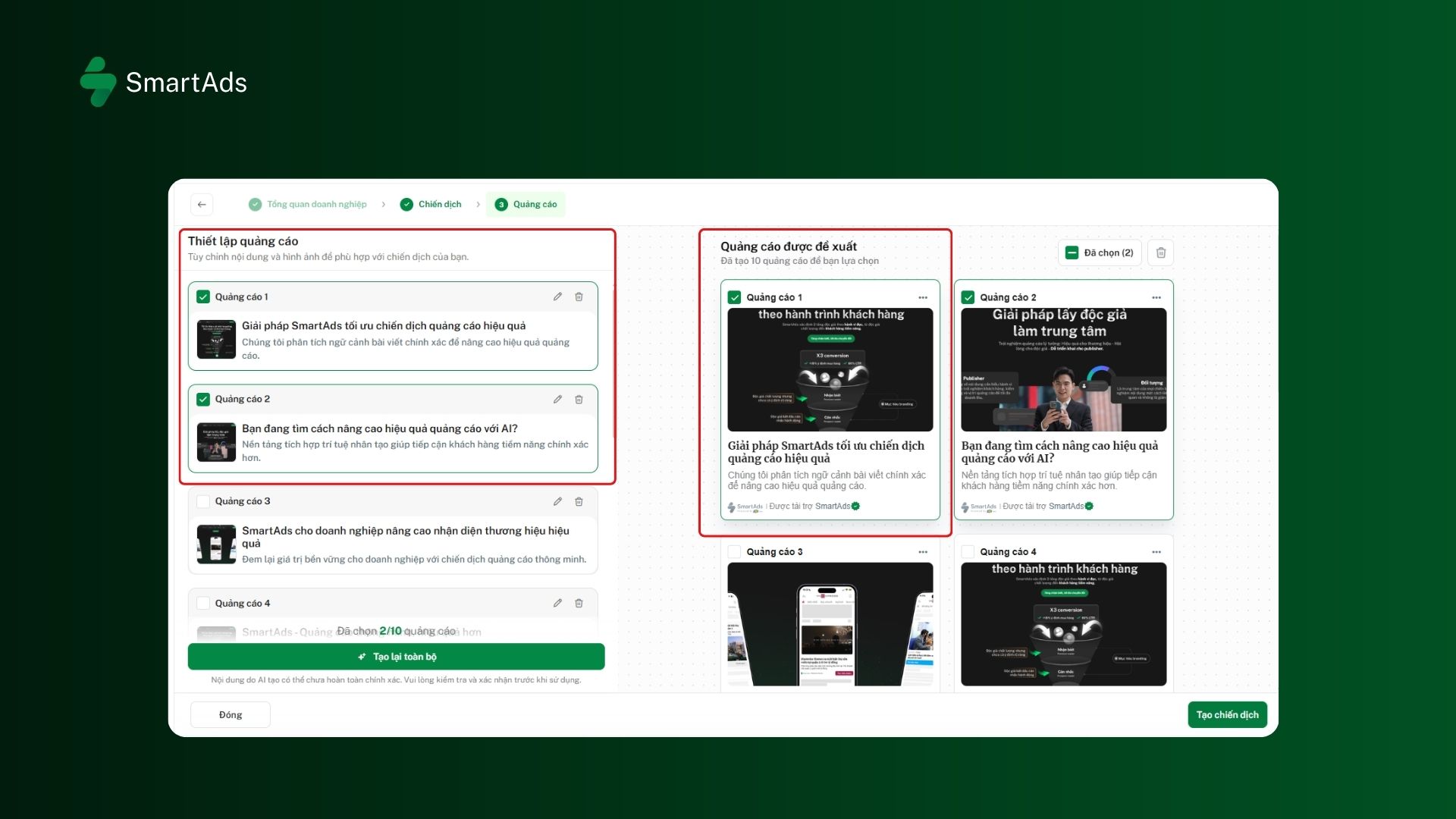
In the “Ad Setup” step, users can preview and select the suggested creatives or edit them to suit their needs. To explore alternative options, advertisers can use the “Regenerate All” option to have the system generate new ad content.
Note: AI-generated content may need to be reviewed and edited before use to ensure that the information is accurate and aligned with the brand.
Step 4: Review and Confirm Campaign Creation
After selecting the ads, advertisers should review the campaign details before confirming its creation.
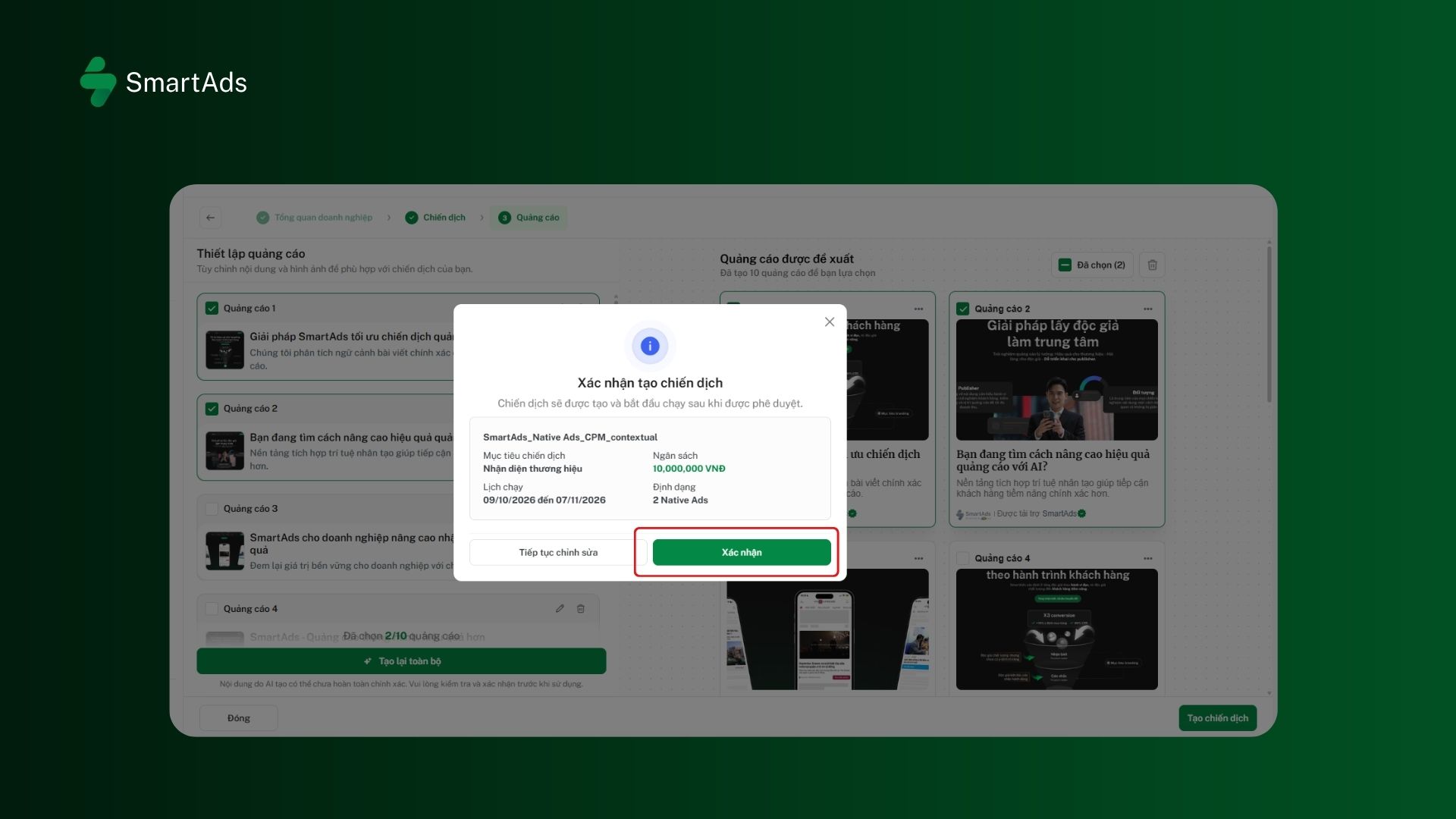
The system will display a “Confirm Campaign Creation” window for users to review the details. If any changes are needed, select “Continue Editing” to return to the setup steps. If all information is correct, select “Confirm” to complete campaign creation.
Explore the Smart Campaign feature here.