1. Overview of the feature
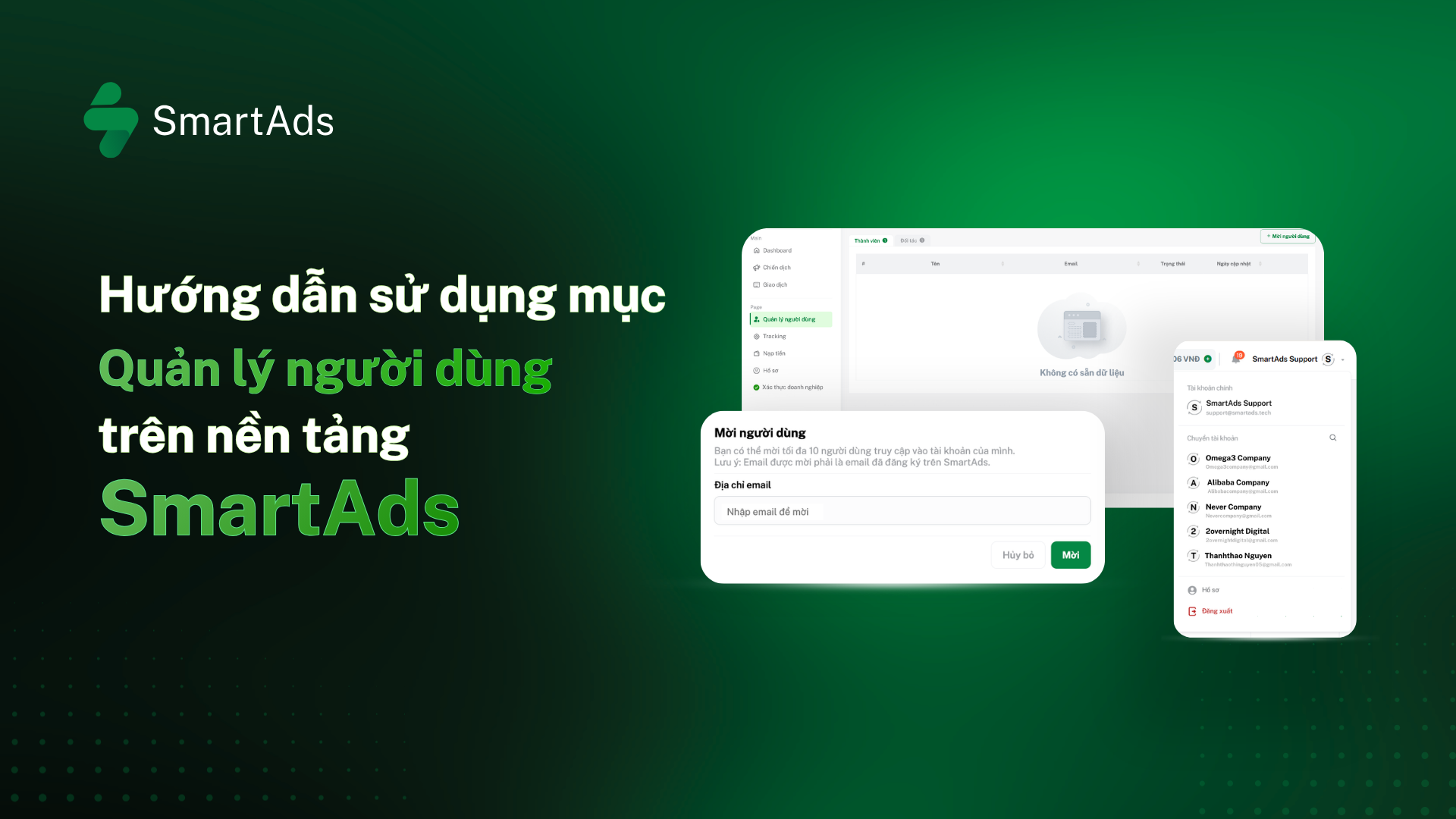
The  feature on SmartAds is designed around 3 core objectives:
-
Control access permissions for members and partners to advertising accounts
-
Invite additional members or partners to co-manage an account on the platform
-
Support advertising collaboration, including campaign monitoring and shared reporting
2. User guide
2.1. Invite new members
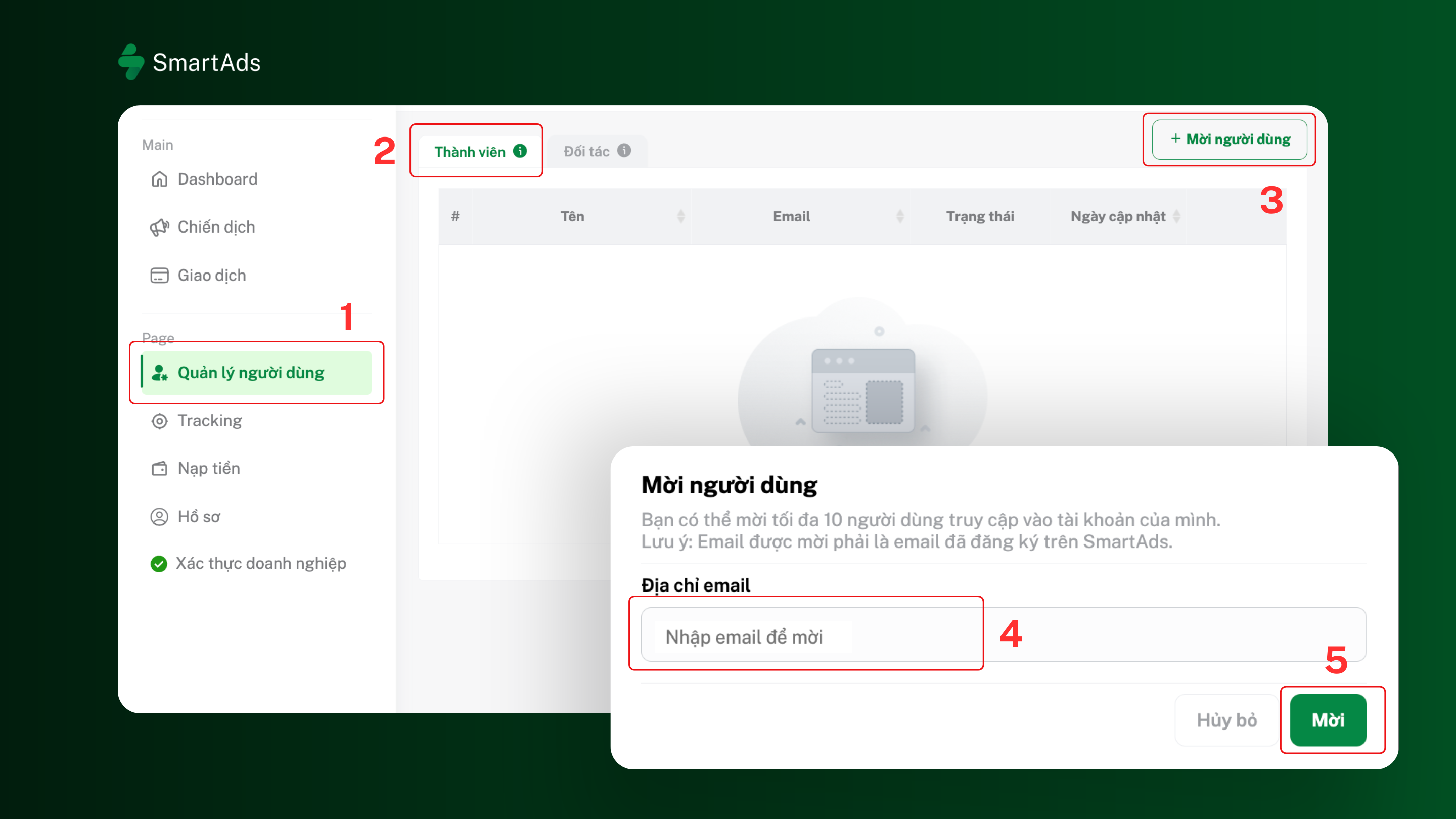
This function allows account owners to add users to help manage advertising activities. Note: the invited email address must already be registered with a SmartAds account.
Step 1: In the sidebar menu, go to User management and select the Members tab.
Step 2: Click the + Invite user button at the top right corner of the screen.
Step 3: Enter the invited user’s email address in the Email address field.
Step 4: Click Invite to send the invitation via email.
Note: Each SmartAds account can invite up to 10 users.
2.2. Remove members
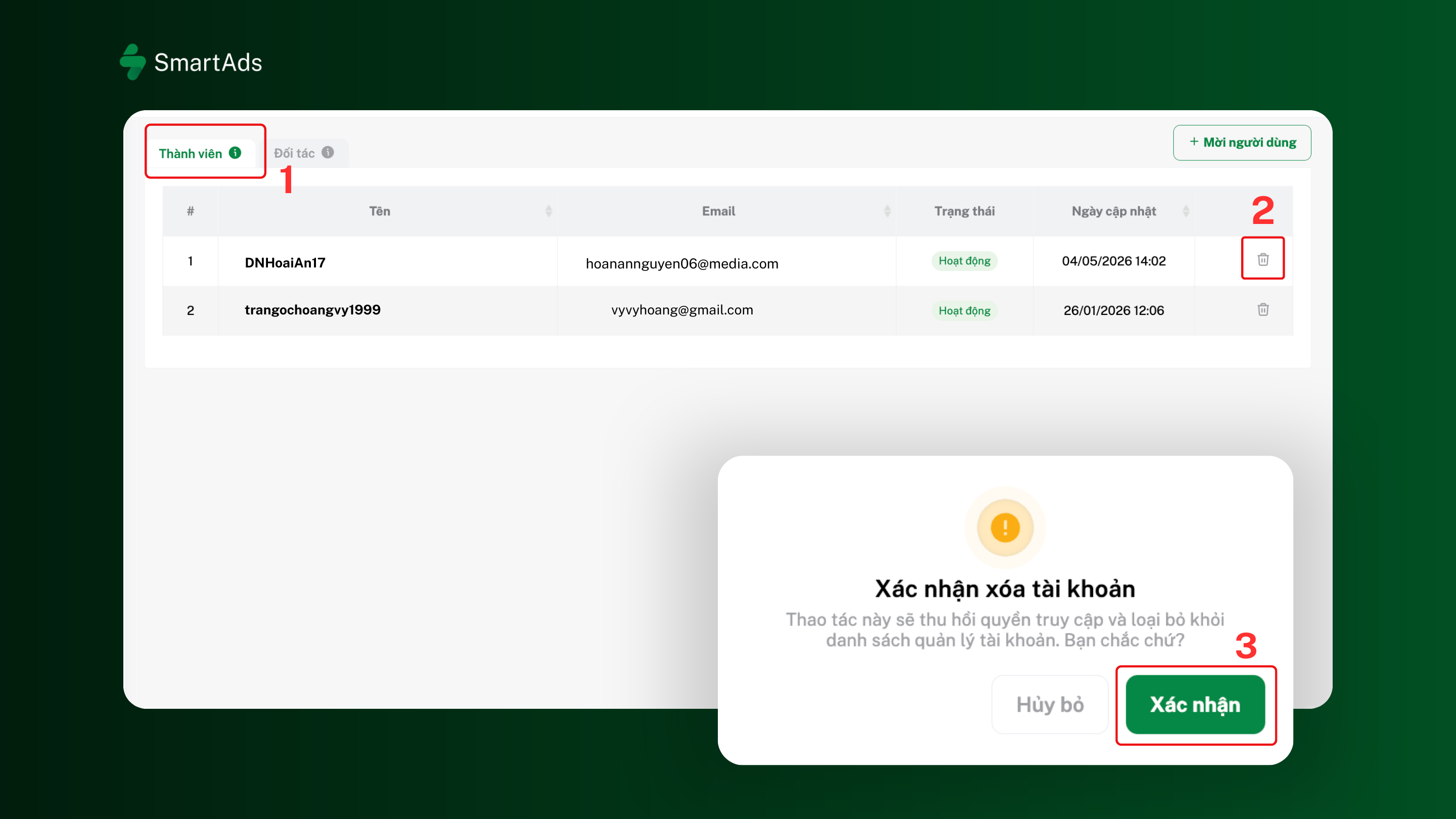
When a member no longer needs access, the account owner can revoke permissions and remove them from the management list.
Step 1: Go to User management and select the Members tab.
Step 2: Find the account to be removed and click the trash icon at the end of the corresponding row.
Step 3: The system will display a confirmation dialog. Click Confirm to complete the action. This will revoke access and remove that member from the list.
2.3. Quickly switch management accounts
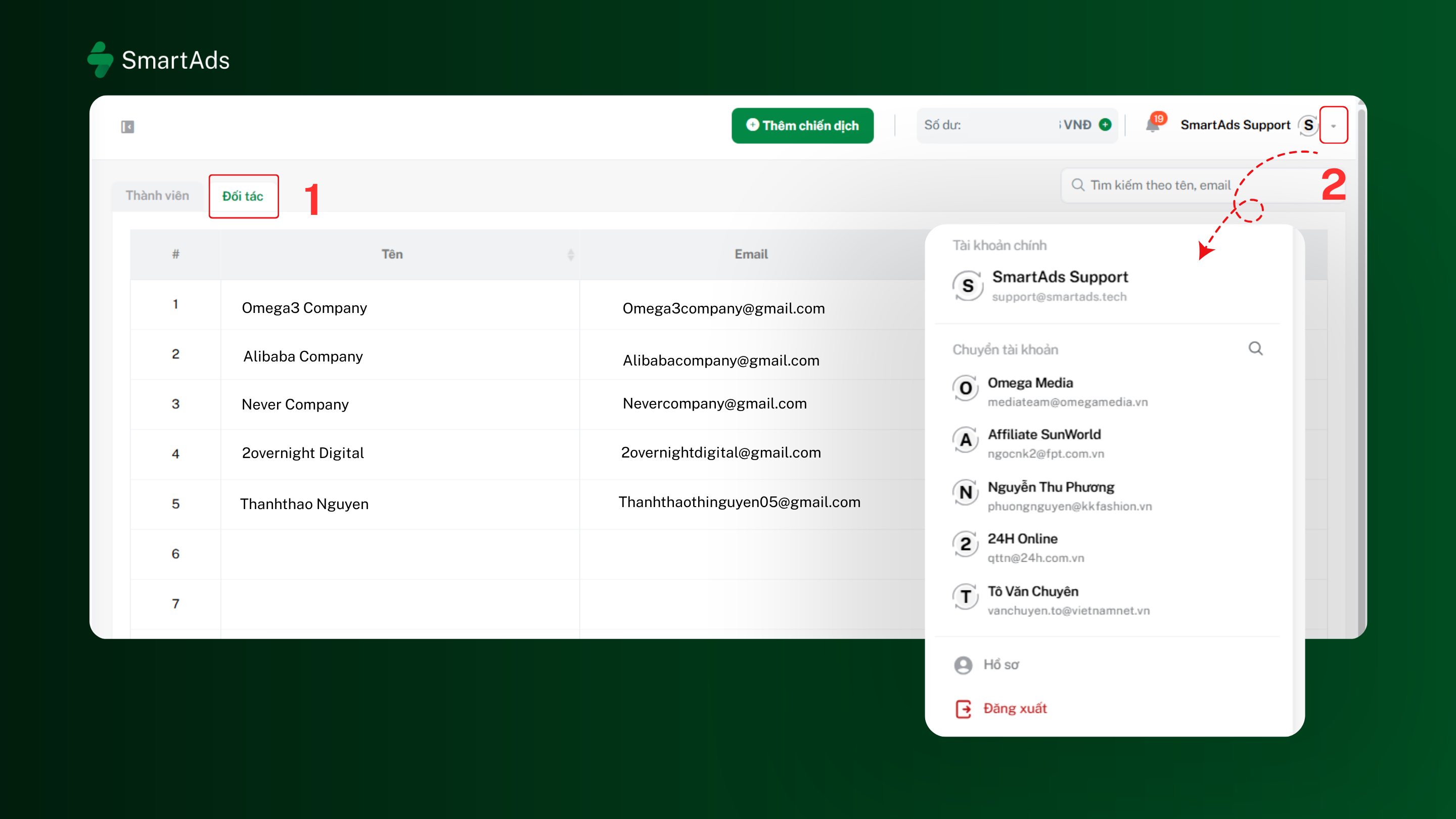
This feature is especially useful for agencies or users managing multiple advertising accounts at the same time, allowing quick switching between partner accounts without logging out.
Step 1: Go to User management and select the Partners tab.
Step 2: Click the dropdown arrow icon in the account name area at the top right corner to open the list of managed accounts.
Step 3: Select the account you want to switch to. The system displays the 5 most recently used accounts for quick access.
2.4. Transfer funds, transfer accounts, and unlink accounts
From the Partners tab, each account in the list includes 3 action icons on the right corner, corresponding to three operations: Transfer funds, Transfer accounts, and Unlink accounts.
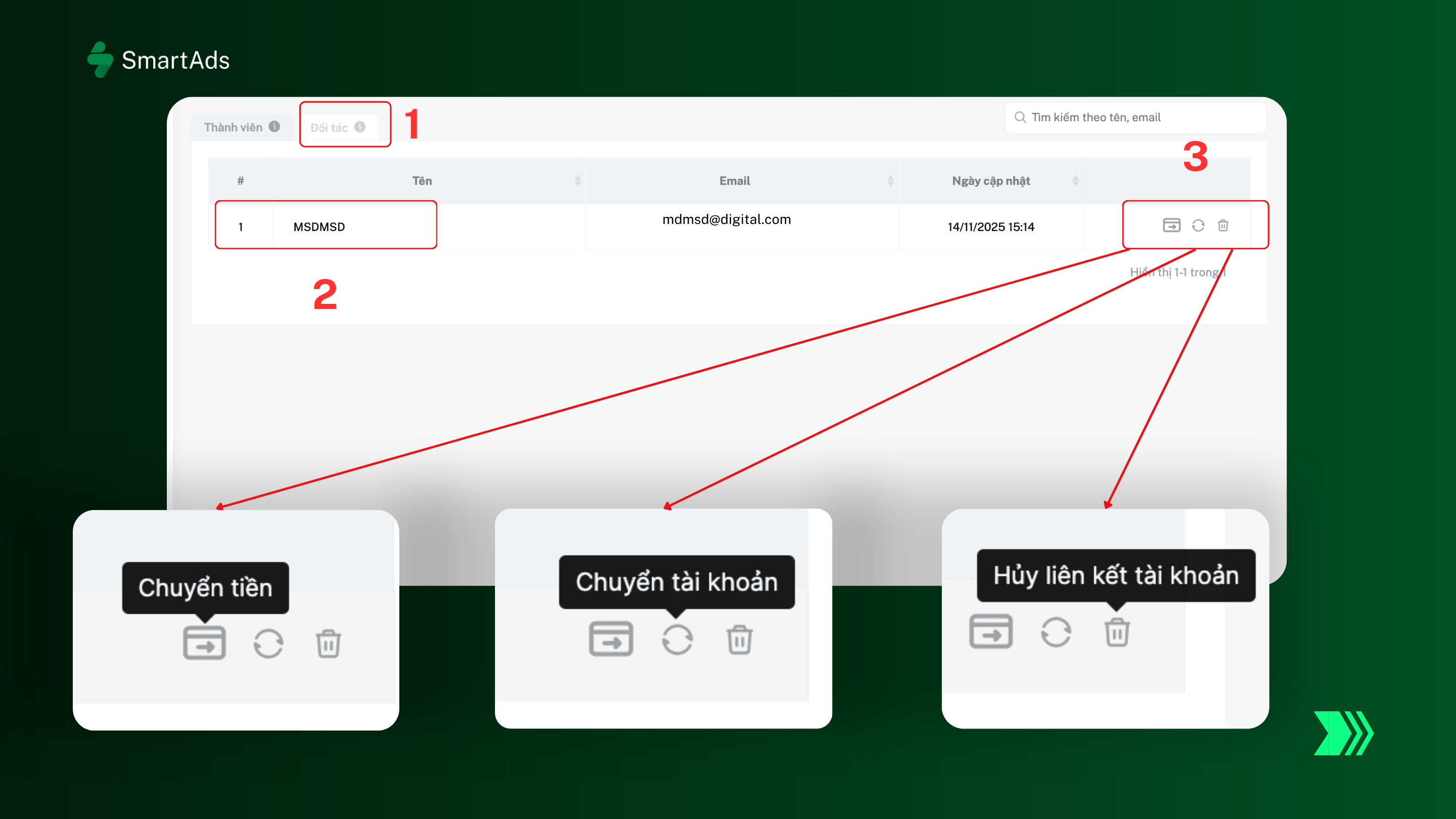
Step 1: Go to User management and select the Partners tab.
Step 2: Find the account you want to manage in the list.
Step 3: Select the appropriate action icon based on your goal and follow the corresponding instructions below.
2.4.1. Transfer funds
This allows you to transfer balance from the main account to a partner account. The minimum transfer amount per transaction is 100,000 VND.
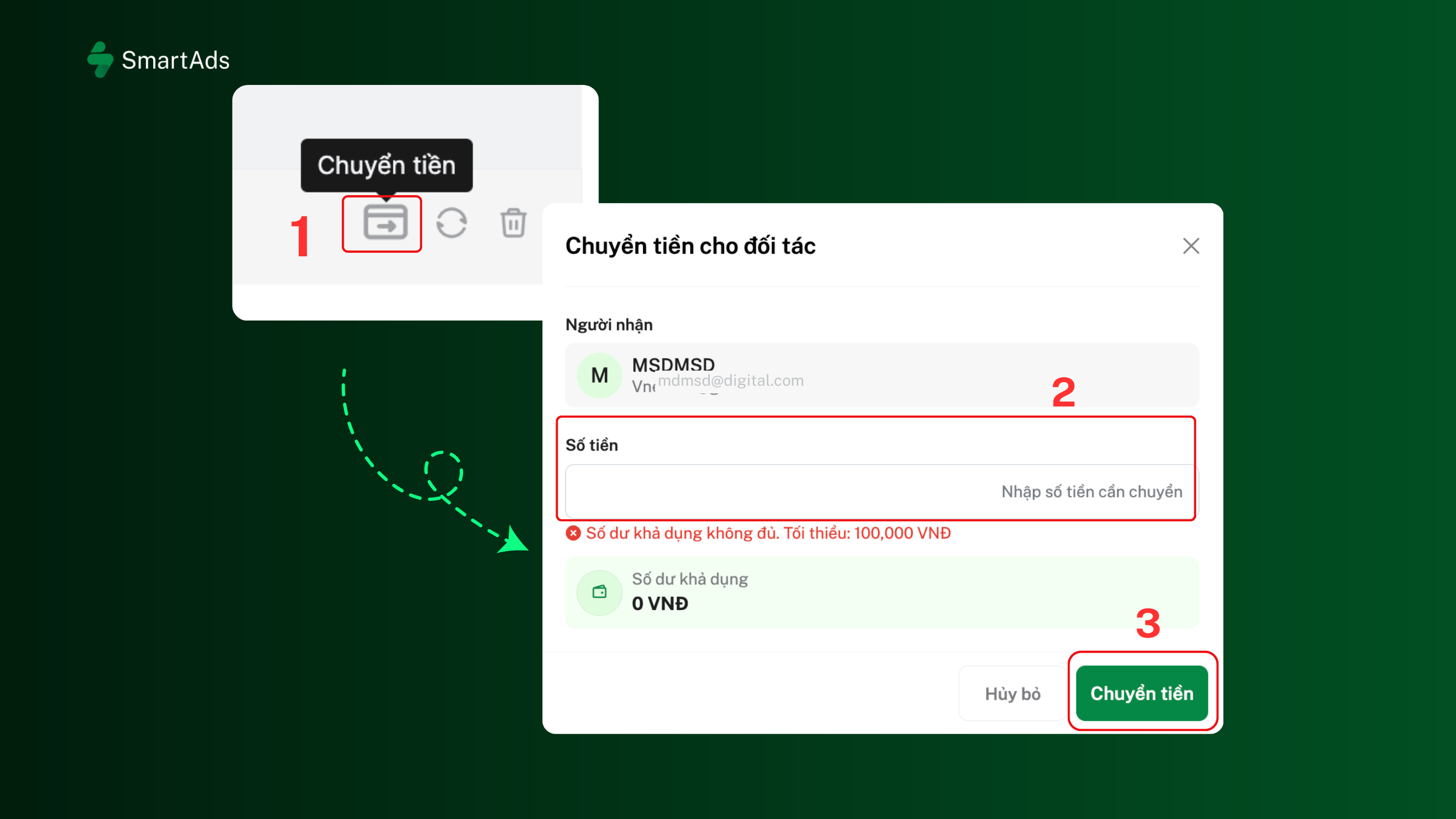
Step 1: Click the Transfer funds icon. The system will open the Transfer funds to partner panel with recipient information pre-filled.
Step 2: Enter the amount to transfer in the Amount field. Make sure your account balance is sufficient and the amount is not less than 100,000 VND.
Step 3: Click the Transfer funds button to proceed with verification.
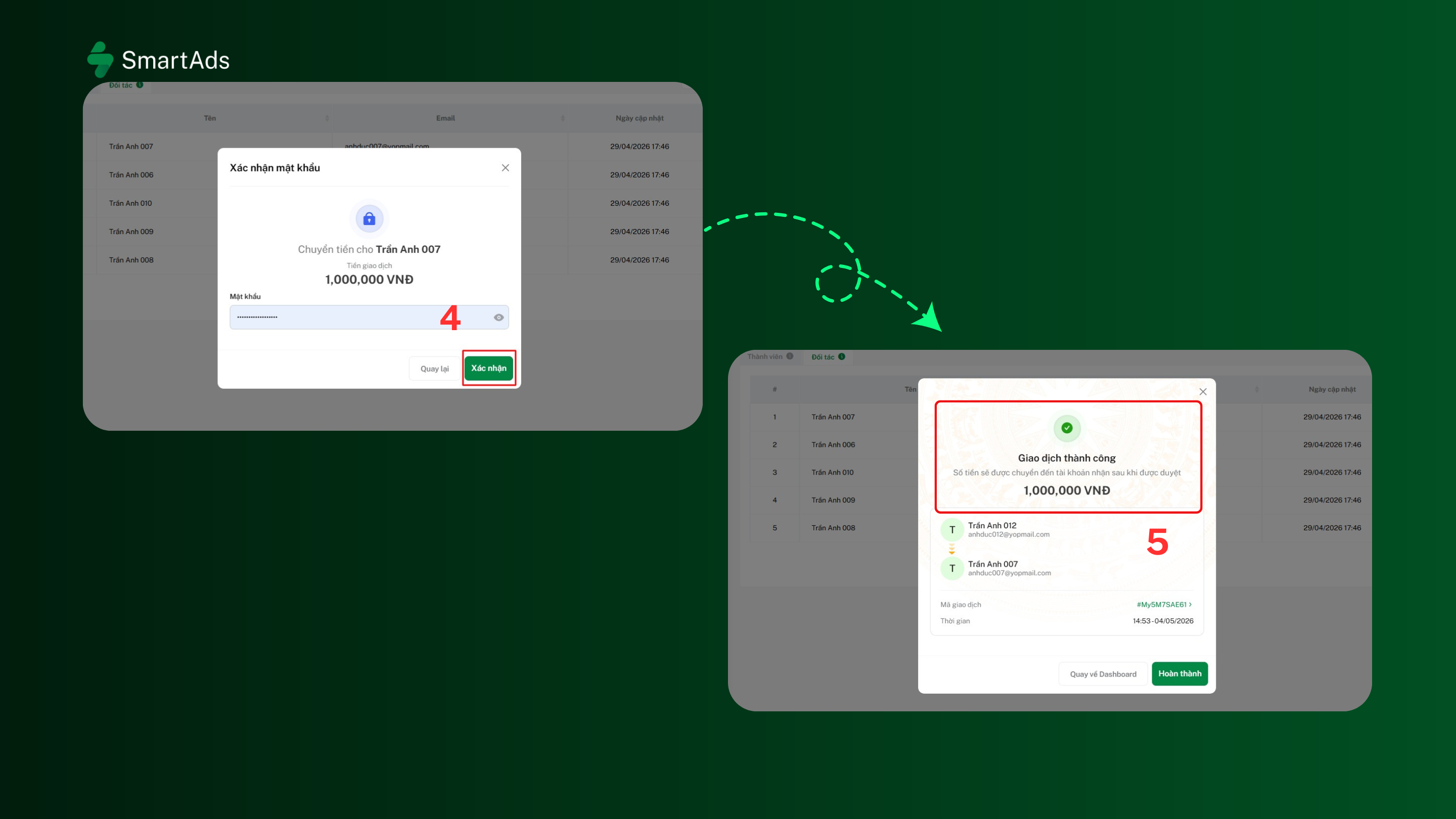
Step 4: Enter your verification password or OTP code (if two-factor authentication is enabled), then click Confirm.
Step 5: The system will display the transaction result (Success/Failed) along with detailed information including recipient, amount, transaction ID, and execution time.
2.4.2. Transfer accounts
This allows you to transfer a partner account to another management account when restructuring or handover is needed.
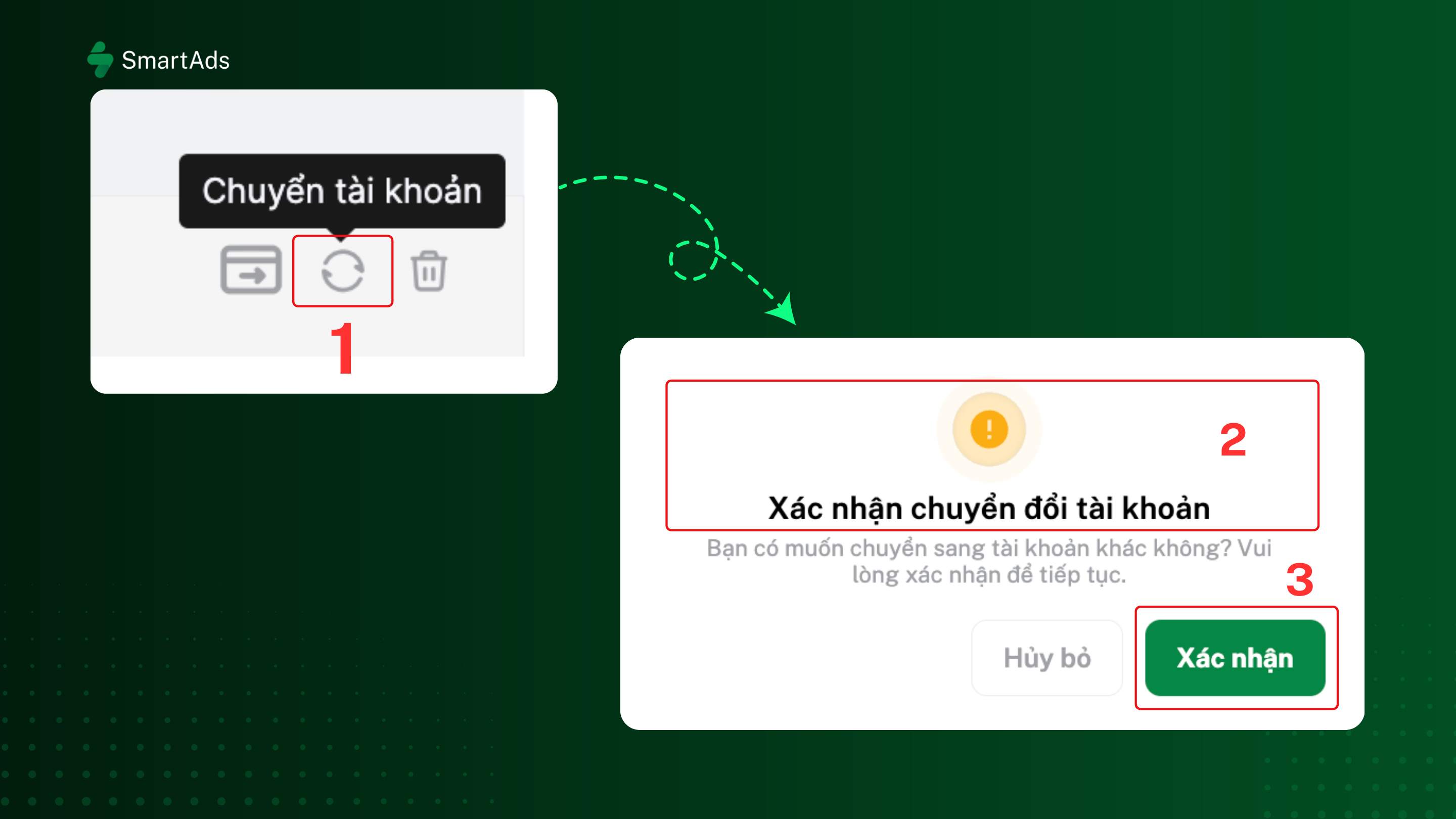
Step 1: Click the Transfer account icon (rotation icon).
Step 2: The system will display a confirmation dialog. Click Confirm to complete the transfer.
2.4.3. Unlink accounts
Use this when you no longer need to manage a partner account. After unlinking, you will no longer be able to switch to that account.
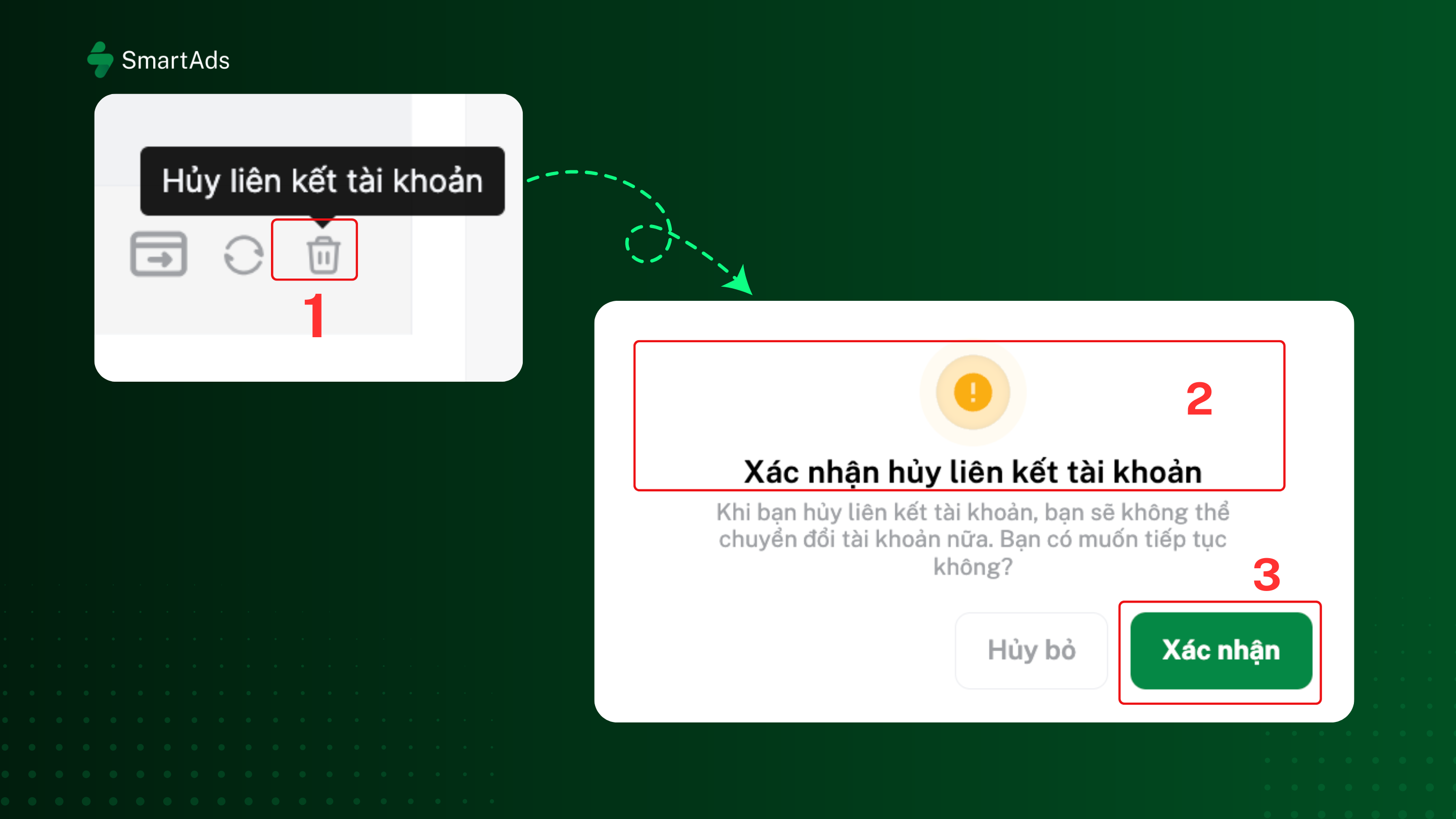
Step 1: Click the Unlink account icon (trash icon).
Step 2: The system will display a warning confirmation. Click Confirm to complete the process.
Note: The unlink action cannot be undone. Please consider carefully before confirming.