1. Feature overview
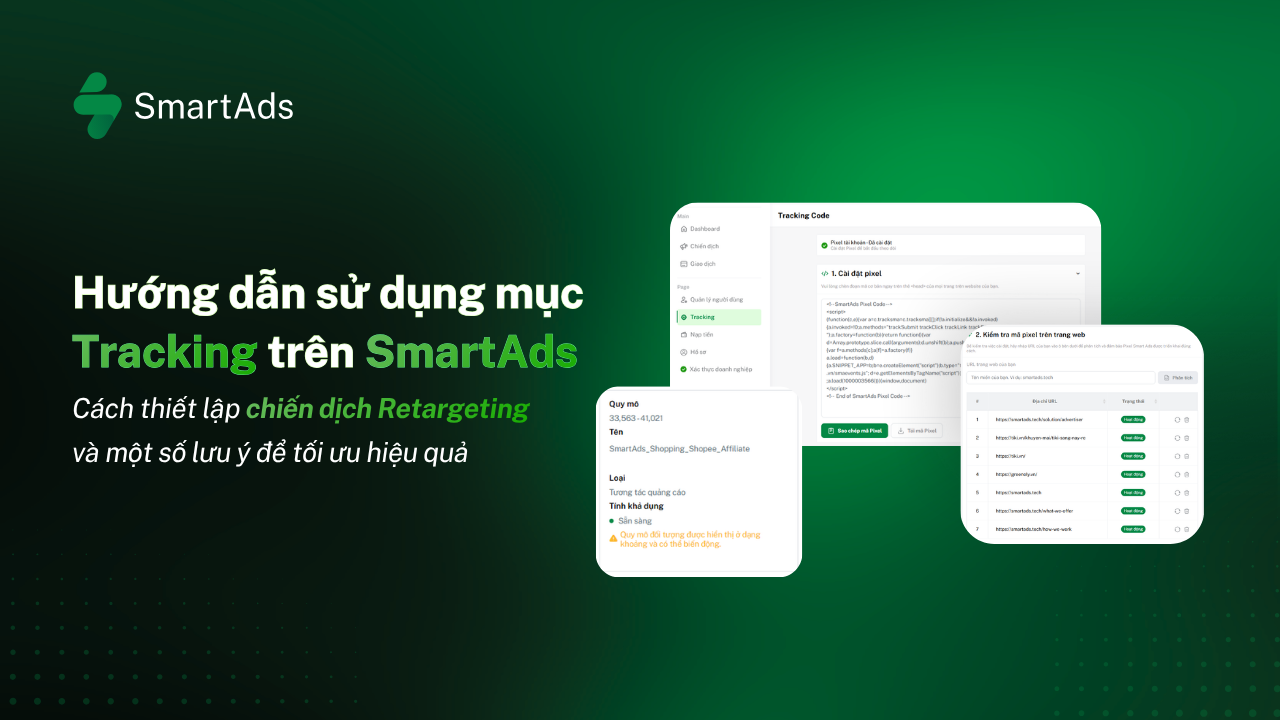
The SmartAds Tracking feature is designed around three core objectives to help advertisers implement website tracking, monitor Pixel performance, and measure campaign effectiveness.
-
Support advertisers in installing the SmartAds Pixel on their website to collect tracking data.
-
Verify the operational status of the Pixel after installation.
-
Track and review website tracking reports to measure advertising performance and user engagement.
2. How to set up the tracking code
2.1. Install the SmartAds Pixel
This feature allows users to retrieve the SmartAds Pixel code and install it on their website to start collecting visitor and conversion tracking data.
-
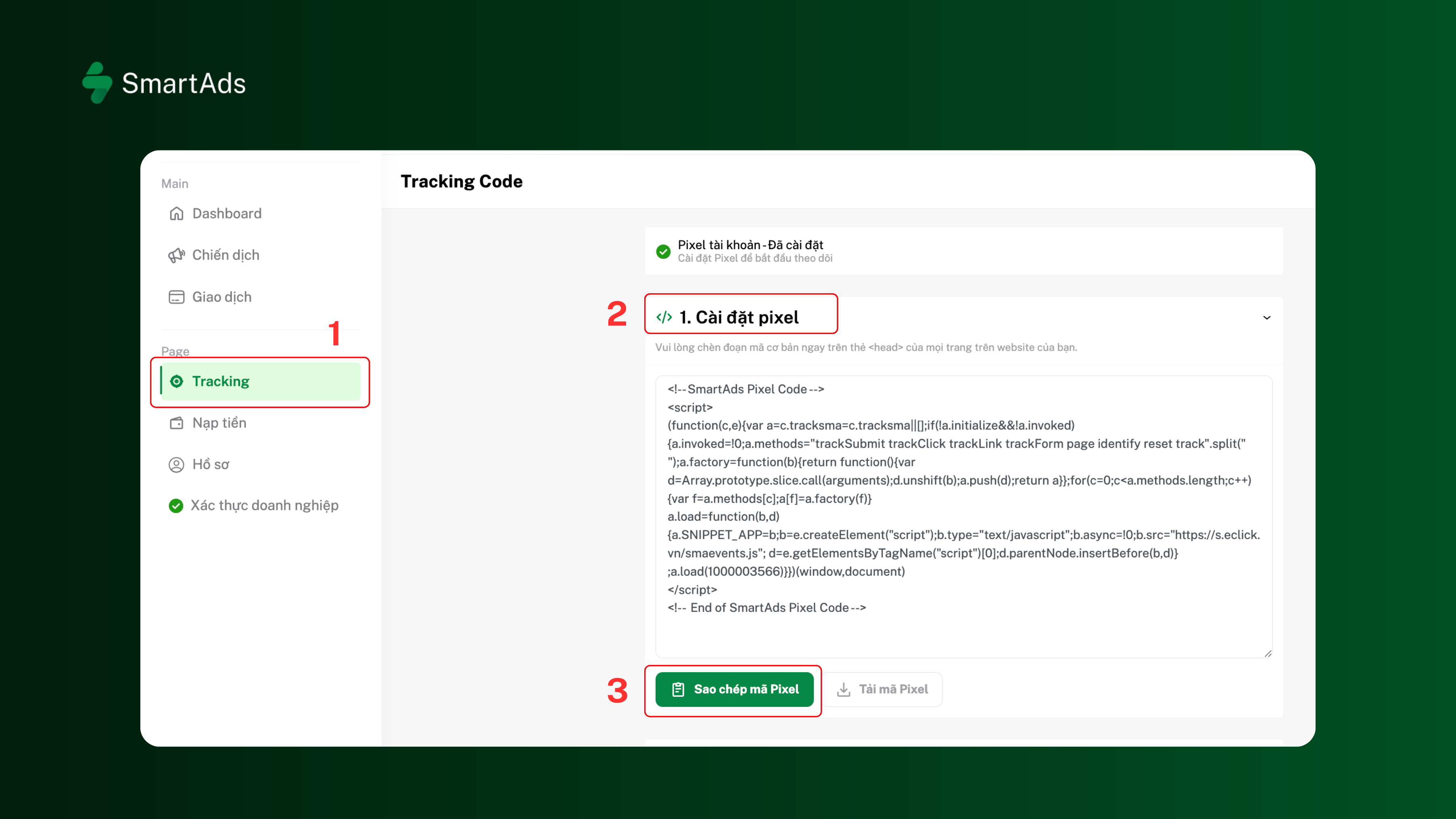
Step 1: From the left sidebar menu, select Tracking (1), then navigate to "1. Install Pixel" (2).
-
Step 2: Copy or download the Pixel code provided by SmartAds. (3)
-
Step 3: Install the Pixel code on your website by following the SmartAds technical documentation or your website developer's implementation guide.
Note: The Pixel should be placed inside the <head> tag of every page you want to track to ensure complete and accurate data collection. -
Step 4: After completing the installation, save your website URL to verify that the Pixel is functioning correctly.
2.2. Verify the Pixel status
After installing the Pixel, verify that it has been successfully detected and is operating correctly before launching your campaigns.
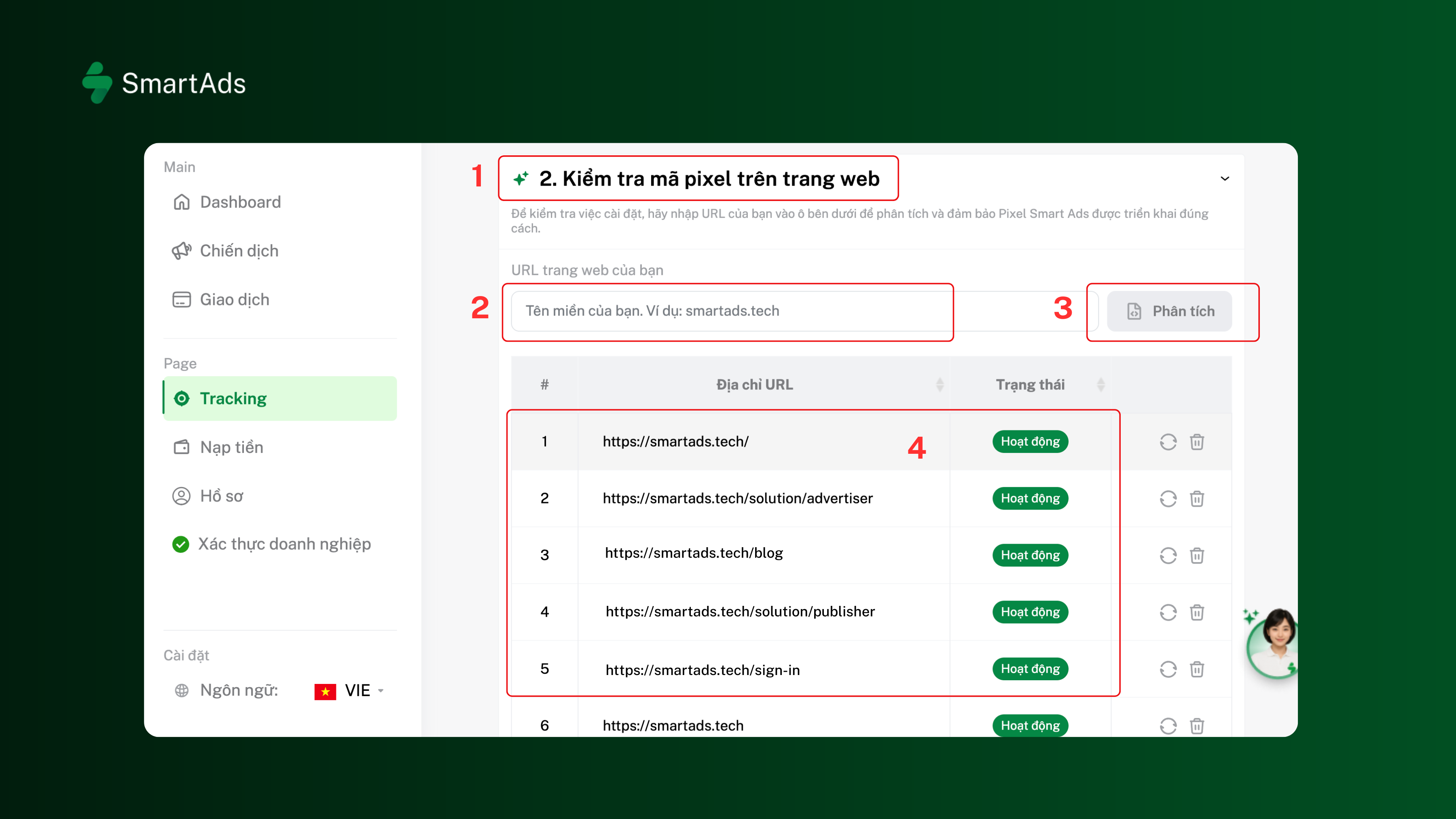
Step 1: Go to "2. Verify Pixel on website" (1).
Step 2: Enter the URL of the website where the Pixel has been installed. (2)
Step 3: Click the "Analyze" button. The system will automatically check the Pixel status on the specified website. (3)
Step 4: Once the verification is complete, the website URL will appear in the results list. (4)
Step 5: Check the Status column:
-
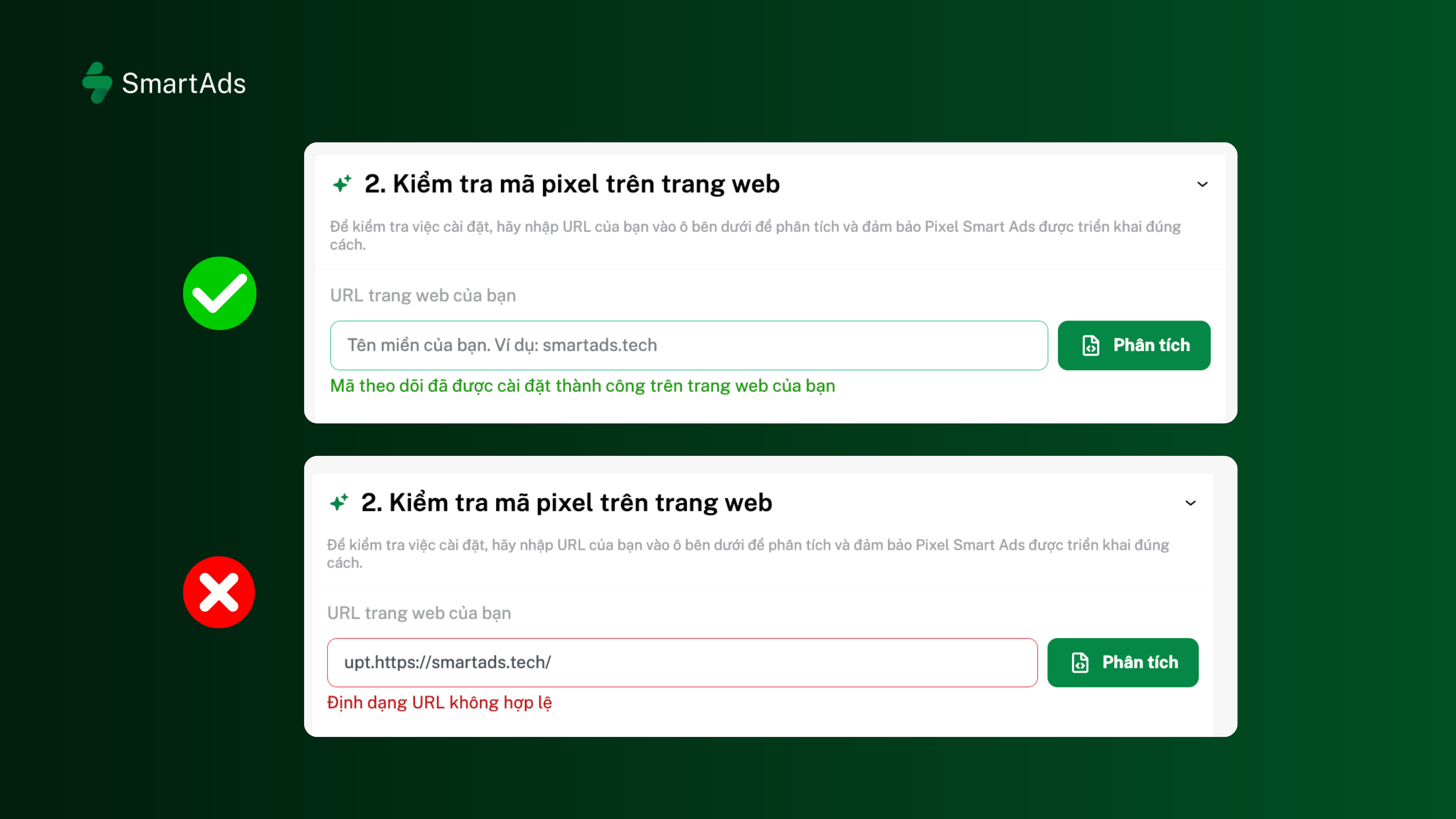
Success: The Pixel has been successfully installed and is working properly.
-
Failed: The Pixel has not been installed, or the system cannot detect it on the website.
3. How to use the tracking code for retargeting campaigns
Once the SmartAds Pixel is active, SmartAds automatically builds an Audience based on users who have previously visited your website from various traffic sources or interacted with your previous SmartAds campaigns. This audience can then be used to launch retargeting campaigns that reconnect with high-intent users and improve conversion performance.
Next, create a new campaign, select the appropriate ad format, enter your campaign name, and continue with the following steps:
3.1. Open the retargeting & audience section
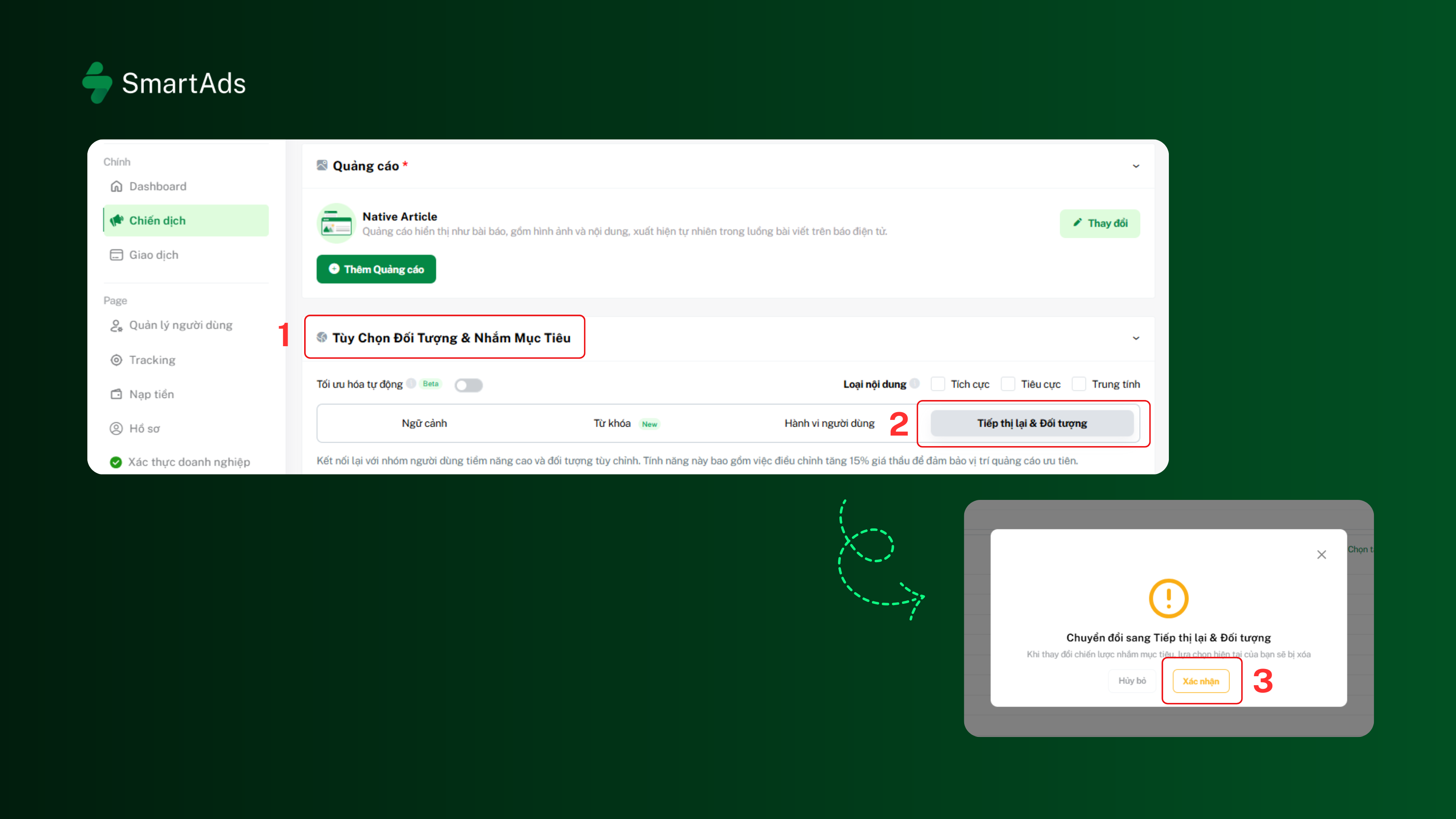
Step 1: Click the "Add Ads" button.
Step 2: Select your preferred ad format and click "Apply".
Step 3: Configure the campaign's basic settings.
Step 4: In the "Audience options & Targeting" section (1), select the "Retargeting & Audience" tab (2), then click "Confirm" (3).
3.2. Select a tracked website
There are two ways to select a website where the SmartAds Pixel has already been installed.
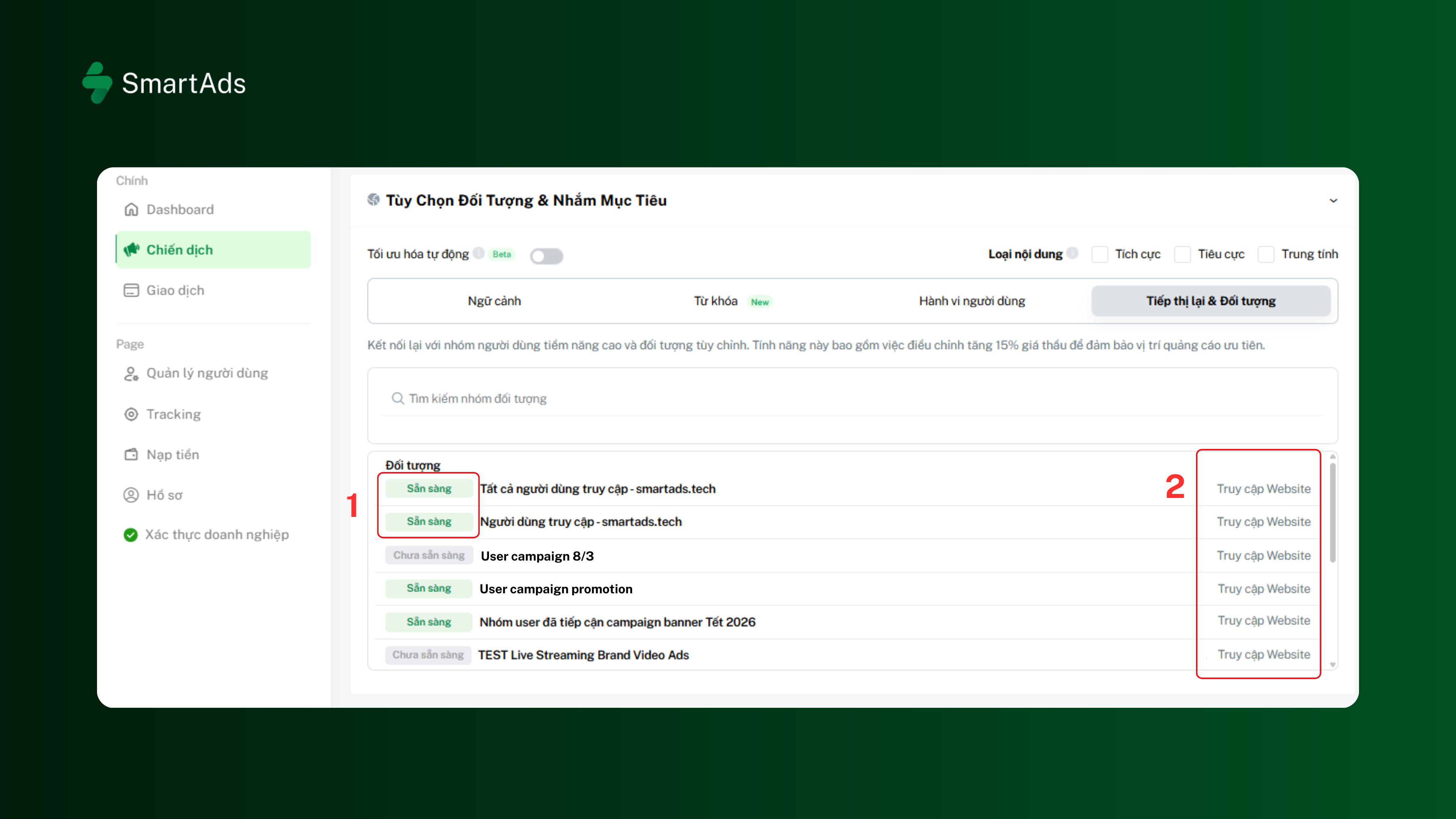
Method 1. Select directly from the list
Websites that have successfully completed Pixel verification will display the status "Ready" (1). Select the website you want to use for building your audience.
A valid website should include the following information:
-
Type: Website Visits (2)
-
Status: Ready / Not Ready
Method 2. Search by URL
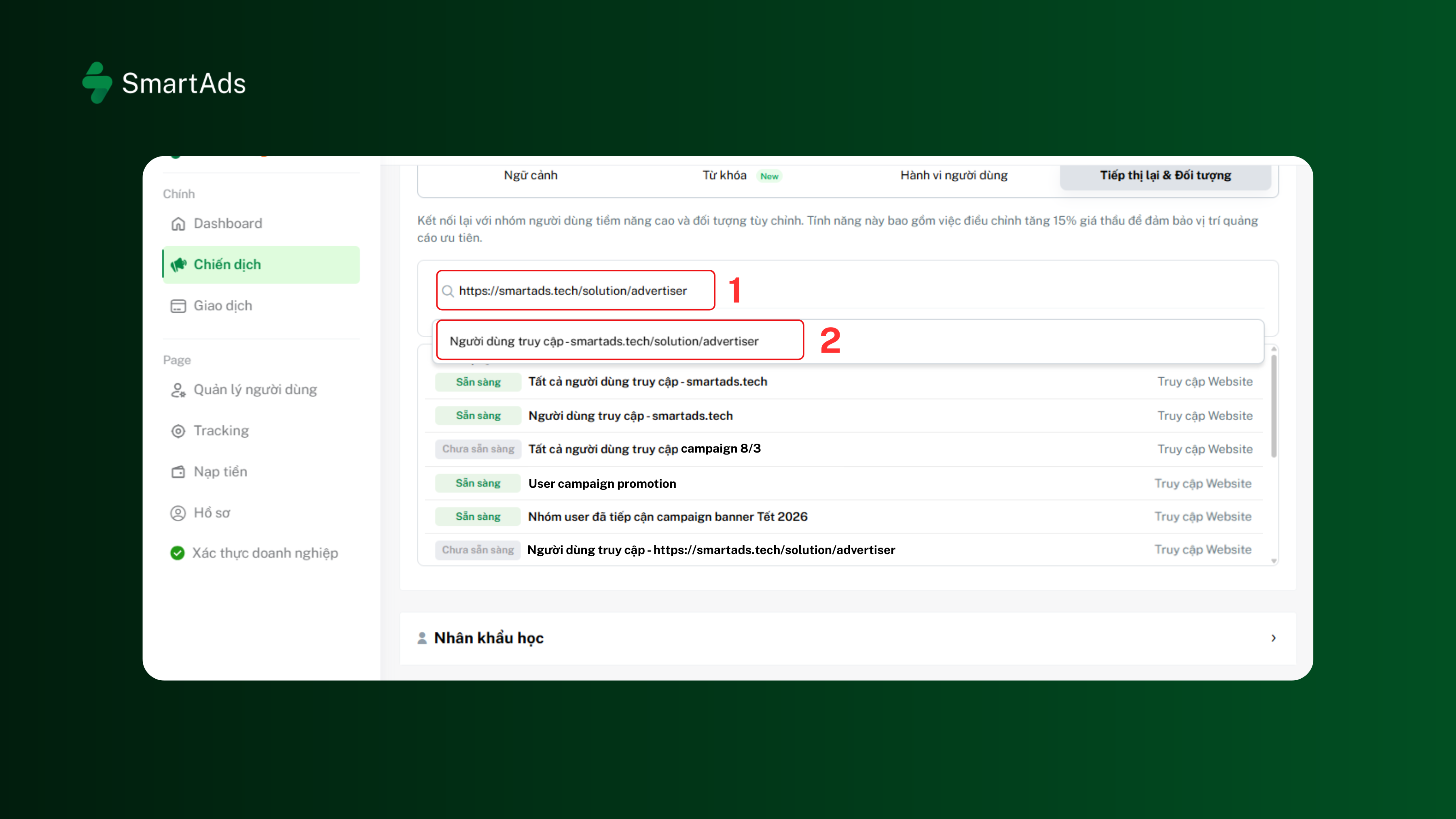
-
Step 1: Enter the website URL into the search box. (1)
-
Step 2: The system will display all eligible websites. (2)
-
Step 3: Select the website you want to use.
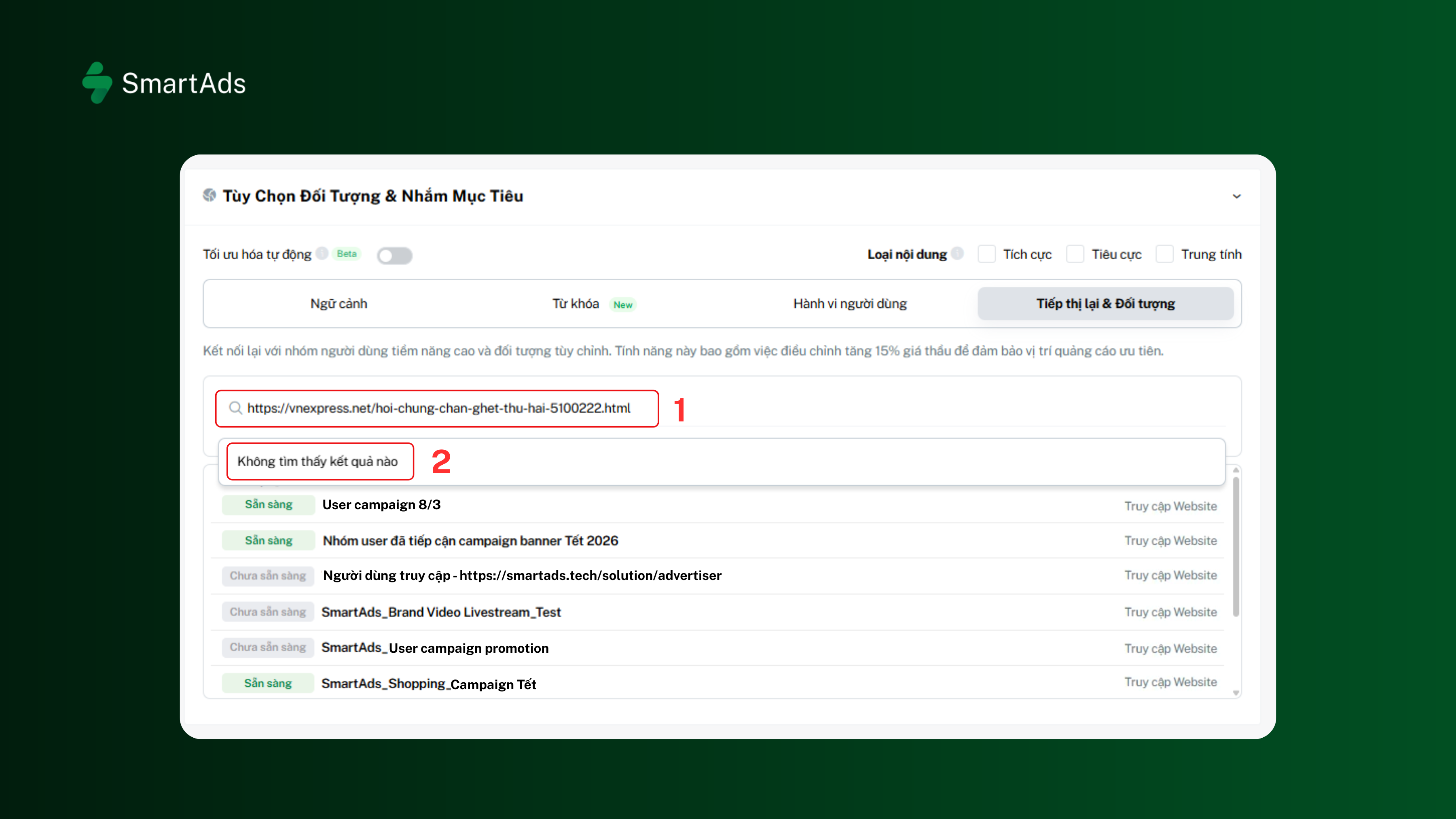
If the URL has not been tracked or has not passed Pixel verification (1), the system will display "No results found". (2)
3.3. Review audience information
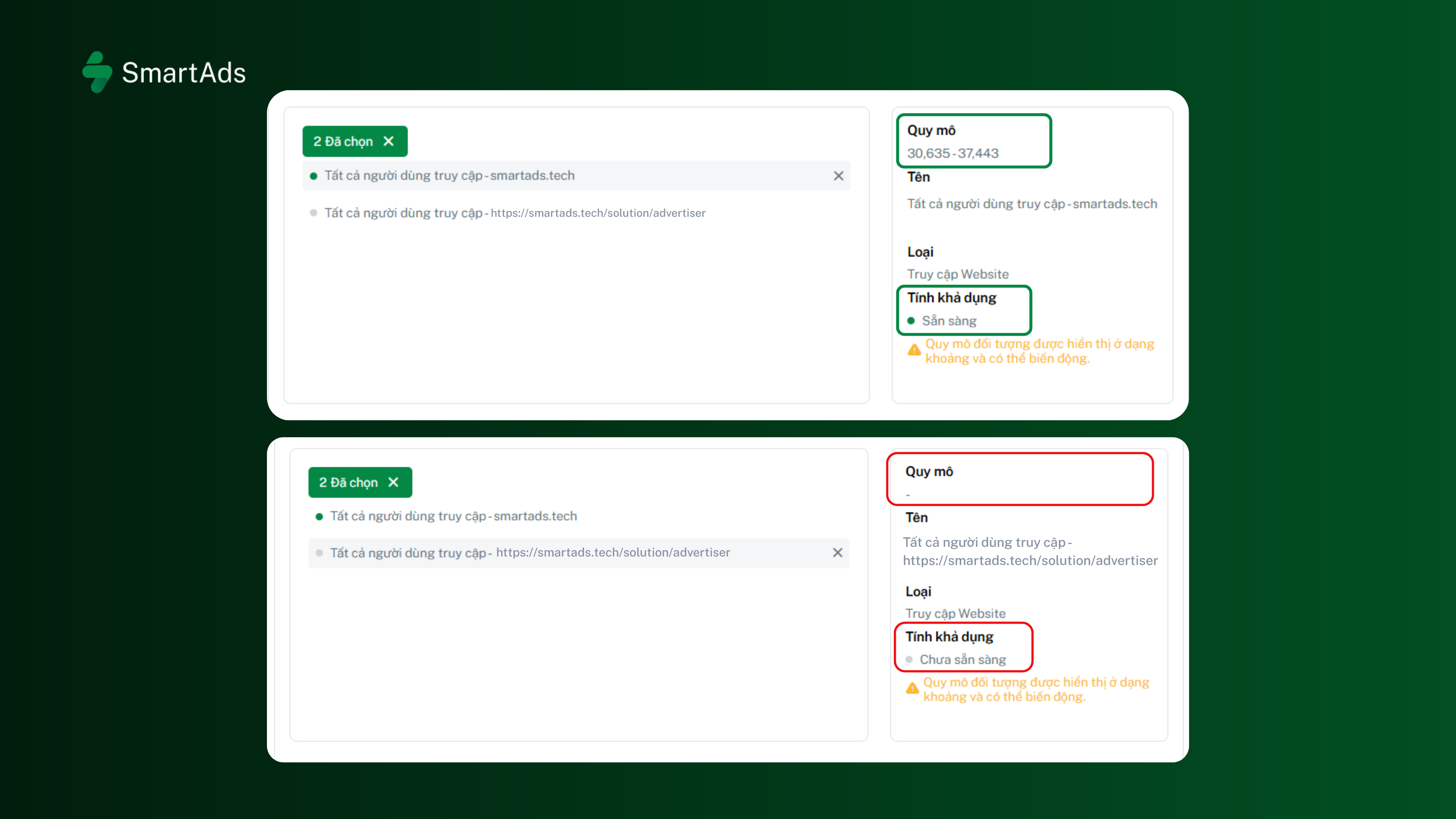
After selecting a website, SmartAds displays the corresponding audience information.
The information includes:
-
Audience name
-
Audience size
-
Type
-
Status
- Ready: The audience has accumulated a medium-to-large volume of website visitors, making it eligible for retargeting campaigns.
- Not Ready: The audience contains little or no visitor data and cannot yet be used for retargeting.
Review the audience information carefully before applying it to your campaign.
3.4. Complete the campaign setup
After selecting your audience:
-
Complete the remaining campaign settings.
-
Configure your ad creatives.
-
Submit the campaign for review.
Once approved, SmartAds will begin delivering ads to the selected retargeting audience.
4. How to monitor tracking reports
After your campaign starts running, SmartAds records tracking data to help businesses evaluate website performance and campaign effectiveness.
4.1. View tracking reports
Users can view tracking data in two ways:
Method 1. From the campaign screen
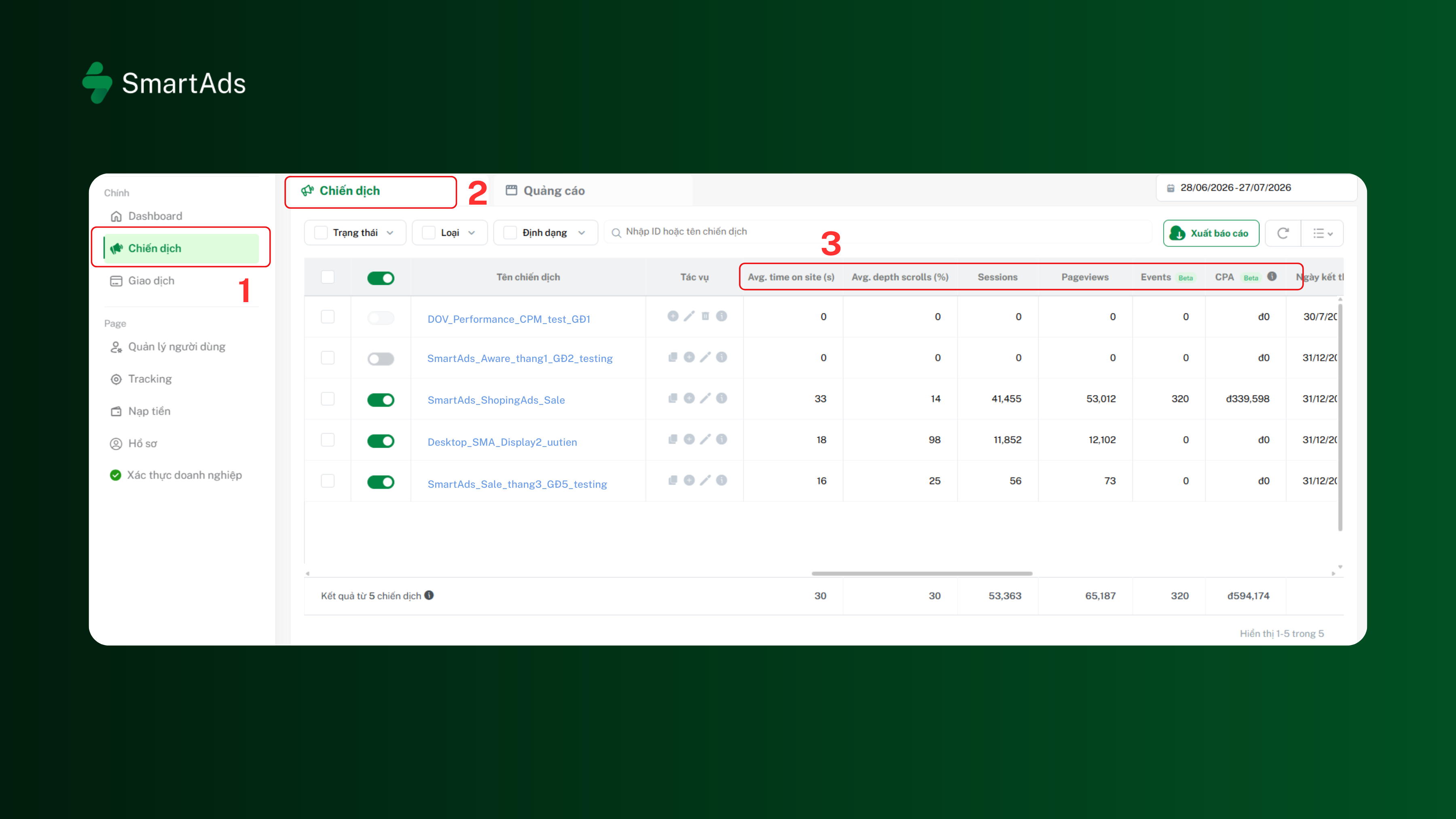
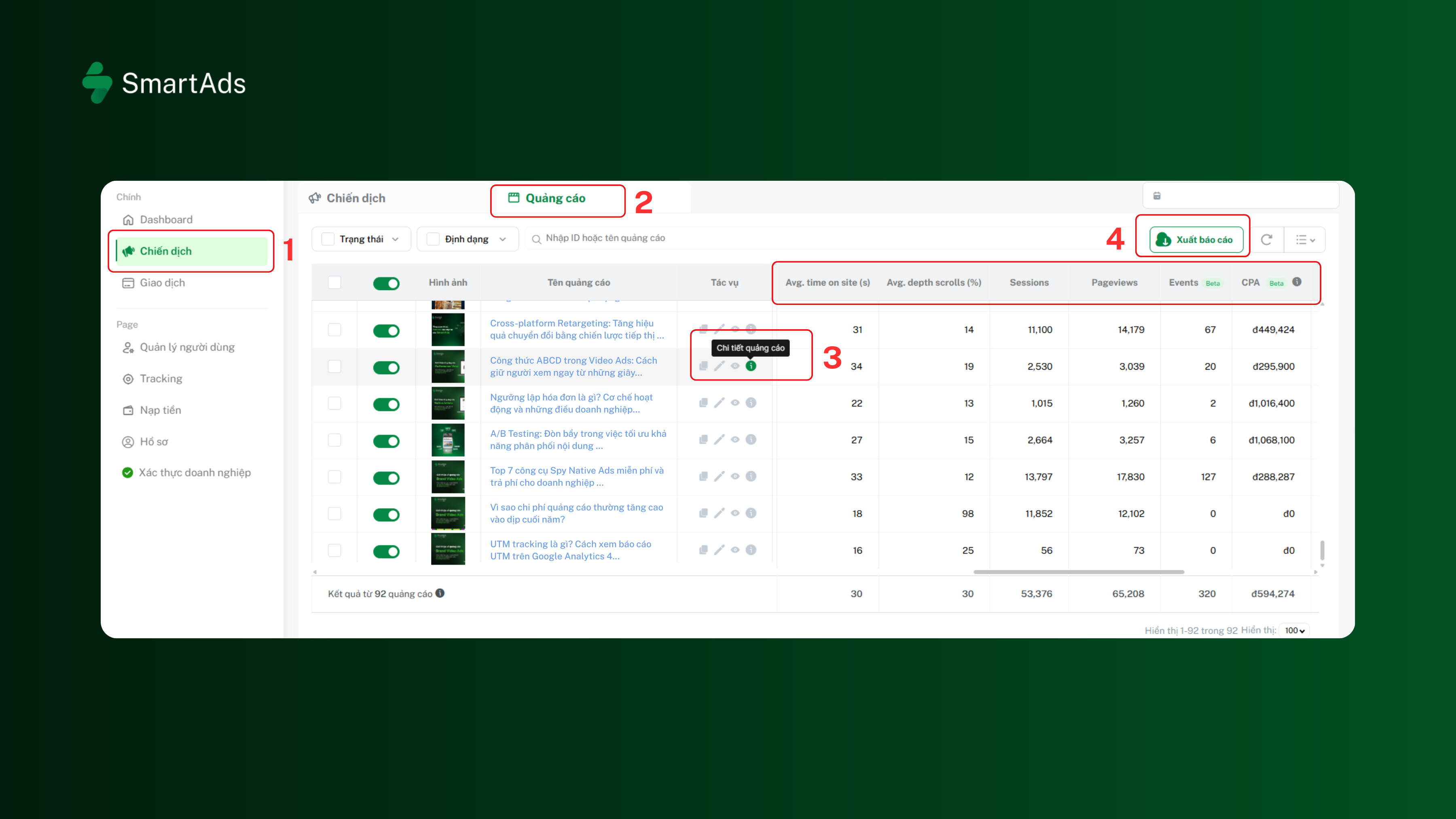
Go to the "Campaigns" tab from the left sidebar menu (1). Tracking metrics will be displayed in the Campaign or Ad list tables (2), (3).
Method 2. From the campaign details or ad details screen
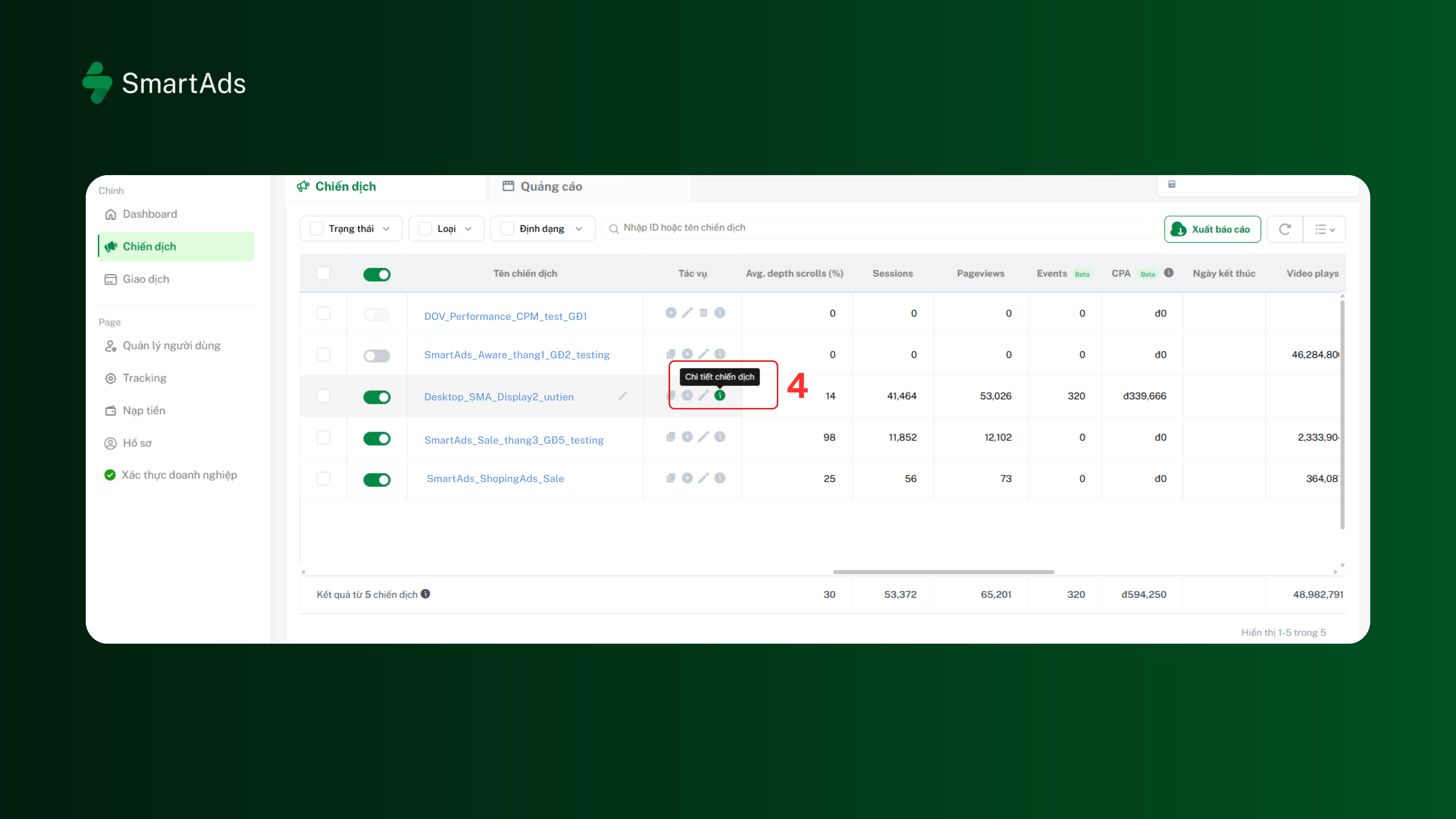
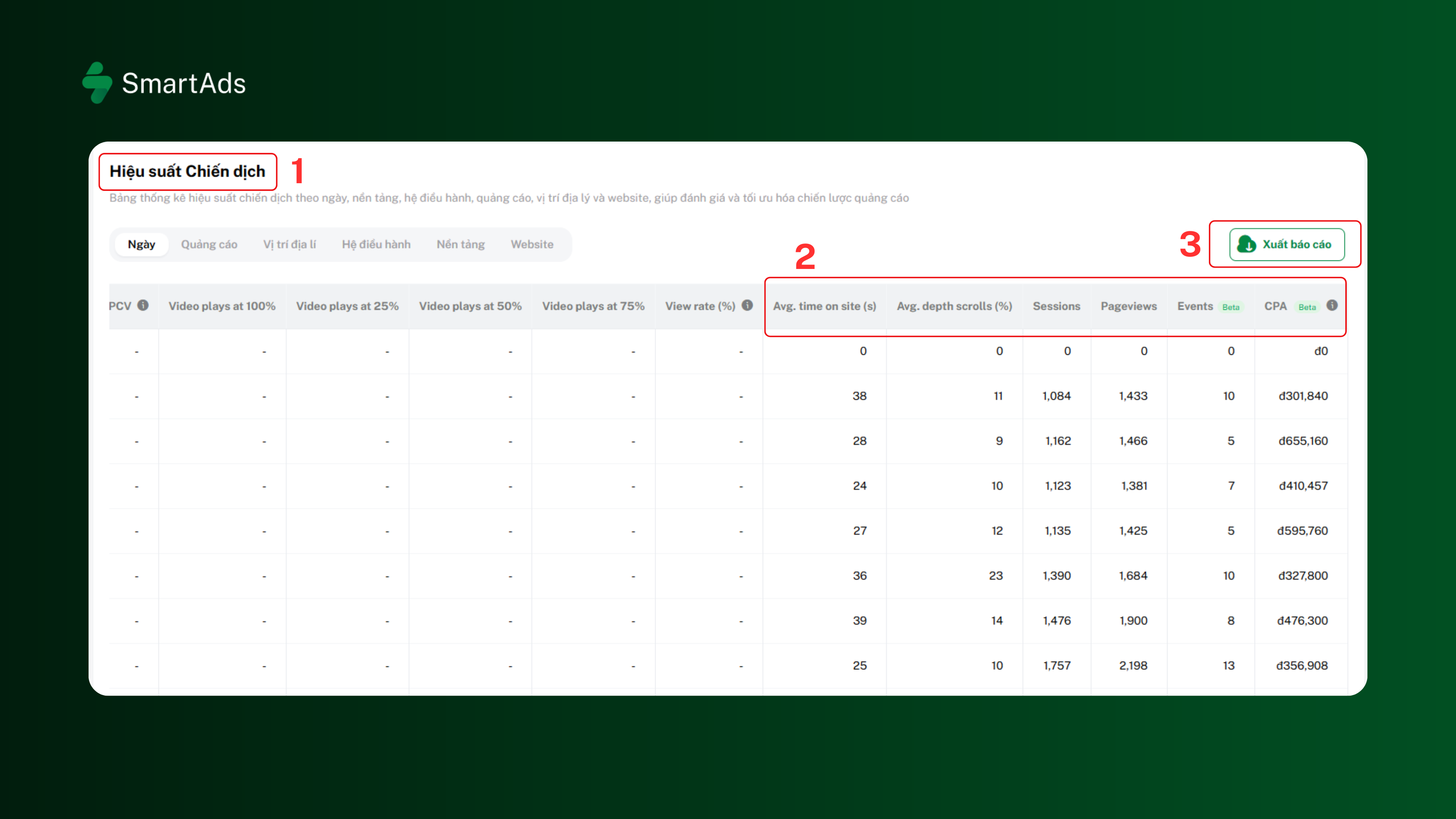
Hover over the "Info" icon (1) in the "Campaign details" section to view detailed campaign metrics. In the Campaign Performance / Ad Performance table (2), the system displays the tracking metrics.
The available metrics include (3):
-
Sessions: Number of website sessions.
-
Page Views: Total page views.
-
Time on Site: Average time users spend on the website.
-
Depth Scrolls: Scroll depth.
-
Events: Total number of recorded events.
-
CPA (Cost Per Action): Total advertising spend divided by the number of recorded events.
These metrics help evaluate how users interact with your landing page after clicking an ad and completing actions on your website.
4.2. Export reports
SmartAds allows users to export tracking data in Excel format. Follow these steps:
Step 1: Open any reporting table, such as the Campaign/Ad list or the Campaign Performance/Ad Performance table, where the Export Report function is available.
Step 2: Select the date range you want to export.
Step 3: Click Export Report (4).
The system will download an Excel file to your device for further analysis and record keeping.
Notes
-
Only websites with a successfully installed and verified Pixel can be used to create an audience.
-
Tracking data is recorded only after the Pixel is active and users begin visiting the website.
-
Audience size changes dynamically based on actual website traffic.
-
If the Pixel is inactive or the website has not been successfully verified, the URL will not appear in the campaign setup selection list.
-
In some cases, advertisers may create additional landing pages or subdomains during a campaign. Therefore, it is recommended to verify the Pixel status after every source code update or whenever a new landing page or subdomain is added to ensure accurate data collection. For example, if your primary website domain is smartads.tech and the Pixel has been installed on the main website and its internal pages, tracking data will be collected automatically. However, if you later create a standalone landing page such as smartads.tech/quatang for a short-term promotional campaign that is outside the main website structure, you should verify that the SmartAds Pixel has also been installed on this page. Otherwise, user activity on that landing page will not be tracked, resulting in incomplete audience data and potentially reducing the effectiveness of future retargeting campaigns.
5. Best practices for retargeting
Retargeting helps you reconnect with users who have previously visited your website or interacted with your ads. To maximize campaign performance, consider the following best practices.
5.1. Run retargeting only when your audience size is sufficient
If your audience is too small, the system will have a limited number of users to serve ads to, resulting in restricted reach and potentially higher advertising costs, such as CPA, CPC, or CPM.
Recommendation:
-
Prioritize retargeting only after your website has built a consistent volume of traffic or your previous campaigns have generated a sufficiently large audience.
-
If your audience is still small, continue running prospecting campaigns to attract new users before launching retargeting campaigns.
5.2. Combine retargeting with prospecting campaigns
Avoid relying solely on retargeting over an extended period. Without attracting new website visitors, your audience will grow very slowly or stop growing altogether.
Recommendation:
-
Run prospecting campaigns alongside retargeting campaigns to continuously bring new users into your retargeting audience.
-
Monitor audience size regularly to evaluate campaign scalability.
5.3. Refresh your ad creatives for retargeting
Users in your retargeting audience have already visited your website or seen your previous ads. Reusing the same creative assets may reduce engagement and conversion rates.
Recommendation:
-
Use new images, videos, or messaging that differ from your previous campaigns.
-
Consider adding promotions, stronger calls-to-action (CTAs), or unique value propositions to encourage conversions.
5.4. Avoid narrowing your audience too much
A retargeting audience already consists of users who have visited your website or interacted with your ads. Applying too many additional targeting filters—such as location, device, operating system, or browser—can significantly reduce audience size.
Recommendation:
-
Apply additional targeting conditions only when they are genuinely necessary.
-
Avoid combining too many targeting criteria, as this may reduce ad delivery and increase advertising costs.
5.5. Review audience size before launching a campaign
Before using a website for a retargeting campaign, always check the audience status and audience size.
Recommendation:
-
Use only audiences with the Ready status that have already accumulated visitor data.
-
If the audience is still marked as Not Ready, verify the Pixel installation or wait for the system to collect more visitor data.
5.6. Verify the Pixel after every website update
Website redesigns, new landing pages, or additional subdomains may cause the Pixel to stop working on certain pages if it has not been reinstalled or properly implemented.
Recommendation:
-
After every website update, verify the Pixel status using the Verify Pixel on website tool.
-
Ensure that every landing page and subdomain used in your campaigns has the SmartAds Pixel installed so that all user data is tracked accurately.
5.7. Monitor performance and optimize regularly
After your retargeting campaign is launched, regularly monitor tracking metrics to evaluate audience quality and user engagement.
Recommendation:
-
Monitor key metrics such as Sessions, Page Views, Time on Site, Depth Scrolls, Events, and CPA.
-
If your CPA continues to increase or conversions decline over an extended period, consider refreshing your ad creatives, adjusting your targeting strategy, or expanding your prospecting audience before continuing your retargeting campaigns.