1. What Is UTM Tracking?
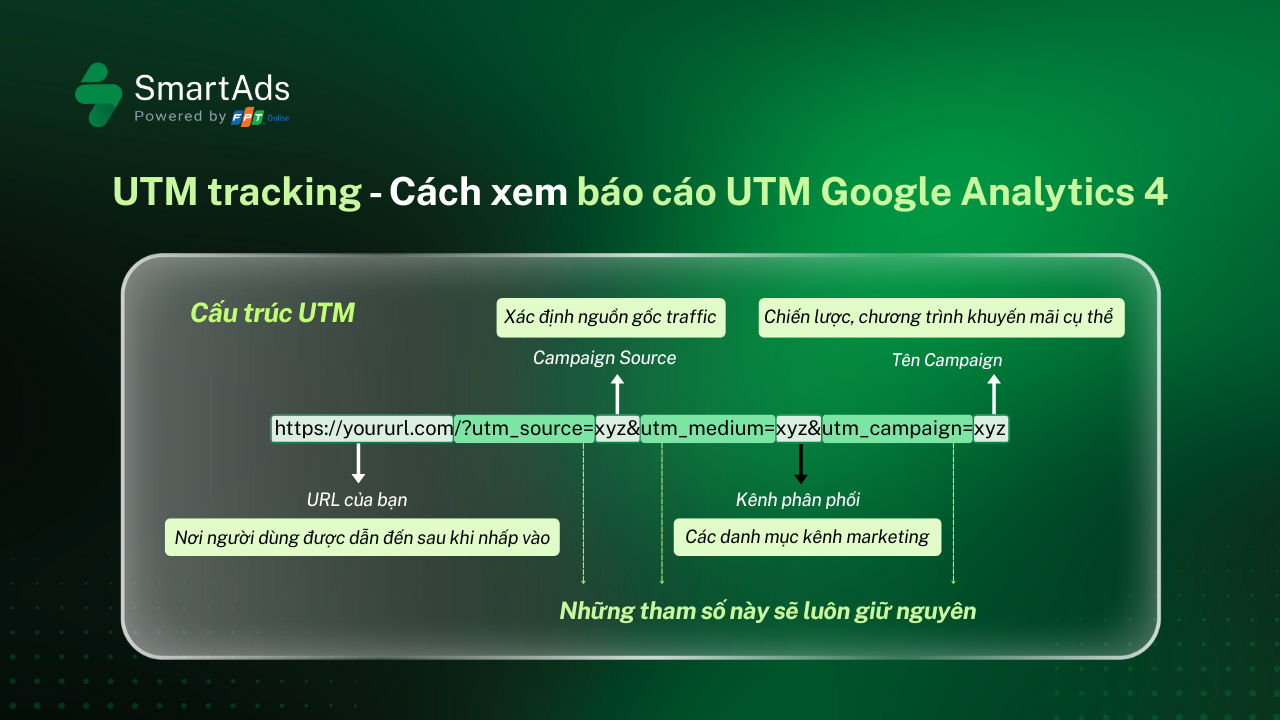
UTM (Urchin Tracking Module) is a short code appended to the end of a URL to help analytics tools such as Google Analytics identify and classify traffic sources. In other words, UTM functions as a “campaign identifier” for each marketing initiative.
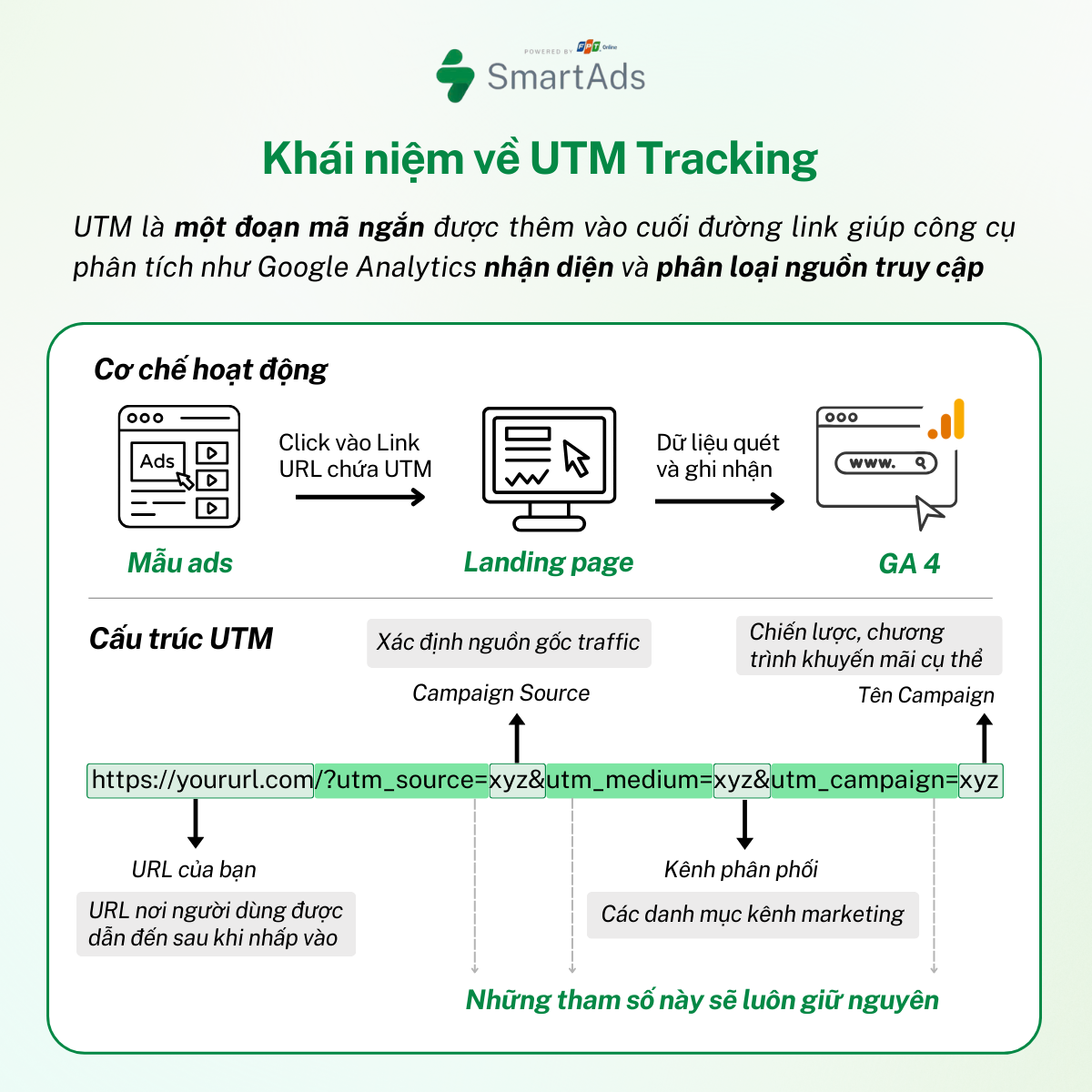
The core components of UTM tracking include:
-
Source (utm_source): identifies the traffic source such as Google, Facebook, Bing, or an email newsletter.
-
Medium (utm_medium): indicates the channel or traffic type through which users arrive, such as email, organic, CPC, or display.
-
Campaign (utm_campaign): specifies the campaign name, for example product launches, seasonal promotions, or events.
-
Content (utm_content): optional, used to differentiate content variants or touchpoints within the same campaign. This is particularly useful for A/B testing different formats, key messages, or CTAs.
Example from Brand X: https://www.brandx.com/?utm_source=SmartAds&utm_medium=native_ads_cpc&utm_campaign=tet2026&utm_campaign=saleoff20%
-
utm_source: traffic to Brand X originates from SmartAds.
-
utm_medium: the advertising method is native advertising using the CPC model.
-
utm_campaign: the Tet 2026 campaign named tet2026.
-
utm_content: promotional content offering a 20% discount for Brand X customers.
In addition to the standard UTM parameters above, there are several extended UTM formats commonly used for advanced marketing campaigns and A/B testing, allowing marketers to distinguish strategies, objectives, keywords, and more. Below are some reference parameters:
-
Campaign ID (utm_id): sends a unique campaign identifier (e.g. numeric ID) to Google Analytics 4 for clearer campaign differentiation.
-
Term (utm_term): commonly used to tag keywords in search advertising, helping identify which campaign or keyword drives traffic.
-
Creative format (utm_creative_format): distinguishes ad formats such as video, banner, or native ads, similar to utm_content but with a stronger focus on creative format.
-
Source platform (utm_source_platform): a built-in GA4 parameter indicating the platform responsible for directing traffic to a specific Analytics property, such as a media buying platform or an organic traffic management system.
-
utm_marketing_tactic: sends information about the marketing tactic (e.g. remarketing, prospecting, bid strategy), enabling analysis by tactic rather than channel alone.
*Note: The parameters utm_creative_format and utm_marketing_tactic are currently not available in default Google Analytics 4 reports. To analyze these values, you can create custom dimensions in GA4 (User-scoped) or leverage Looker Studio or BigQuery for advanced analysis.
2. How UTM Tracking works
UTM tracking operates as follows:
-
When users click on an ad, they are directed to a landing page via a URL embedded with UTM parameters.
-
As soon as the page loads, GA4 scans and records the UTM parameters, attributing them to individual sessions.
-
If users return via a different link, GA4 creates a new session with a new set of UTM values, allowing accurate tracking of the user’s multi-channel journey.
Thanks to these parameters, marketers can clearly identify which ads, content, or channels drive traffic and conversions—an essential foundation for budget optimization.
3. How to Add UTM Tracking to Ads
Step 1: Define the UTM Structure and Naming Rules
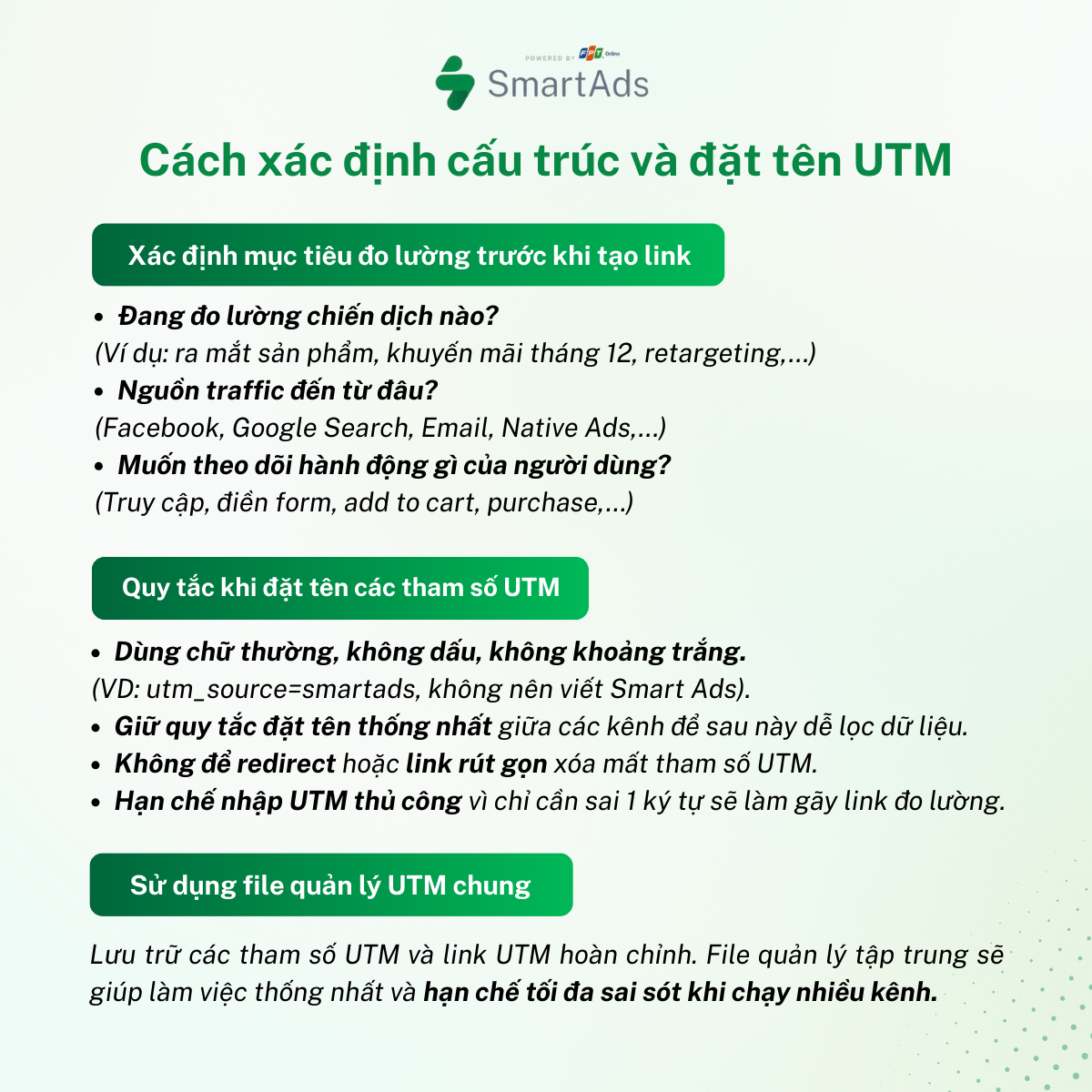
Before generating links, answer these three questions:
-
Which campaign are you measuring? (e.g., product launch, December promotion, retargeting, etc.)
-
Where does the traffic come from? (Facebook, Google Search, Email, Native Ads, etc.)
-
Which user actions do you want to track? (Visits, form submissions, add to cart, purchases, etc.)
Once the measurement goals are defined, it’s important to establish a consistent UTM naming convention across all campaigns and channels. To avoid data fragmentation, keep the following best practices in mind:
-
Use lowercase letters, no accents, and no spaces. (e.g., utm_source=smartads instead of Smart Ads).
-
Maintain consistent naming rules across channels to simplify filtering and reporting later.
-
Avoid redirects or shortened links that may strip UTM parameters always test links before launching campaigns.
-
Limit manual UTM entry, as a single typo can break tracking.
In addition, it’s recommended to manage UTMs in an Excel file or Google Sheet to store campaign names, original URLs, individual UTM parameters, and generated UTM links. Centralized UTM management helps teams work more systematically and minimizes errors when running multiple channels simultaneously.
Step 2: Generate UTM links and attach them to ads
There are many tools available to create UTM links. Below are three simple and commonly used methods:
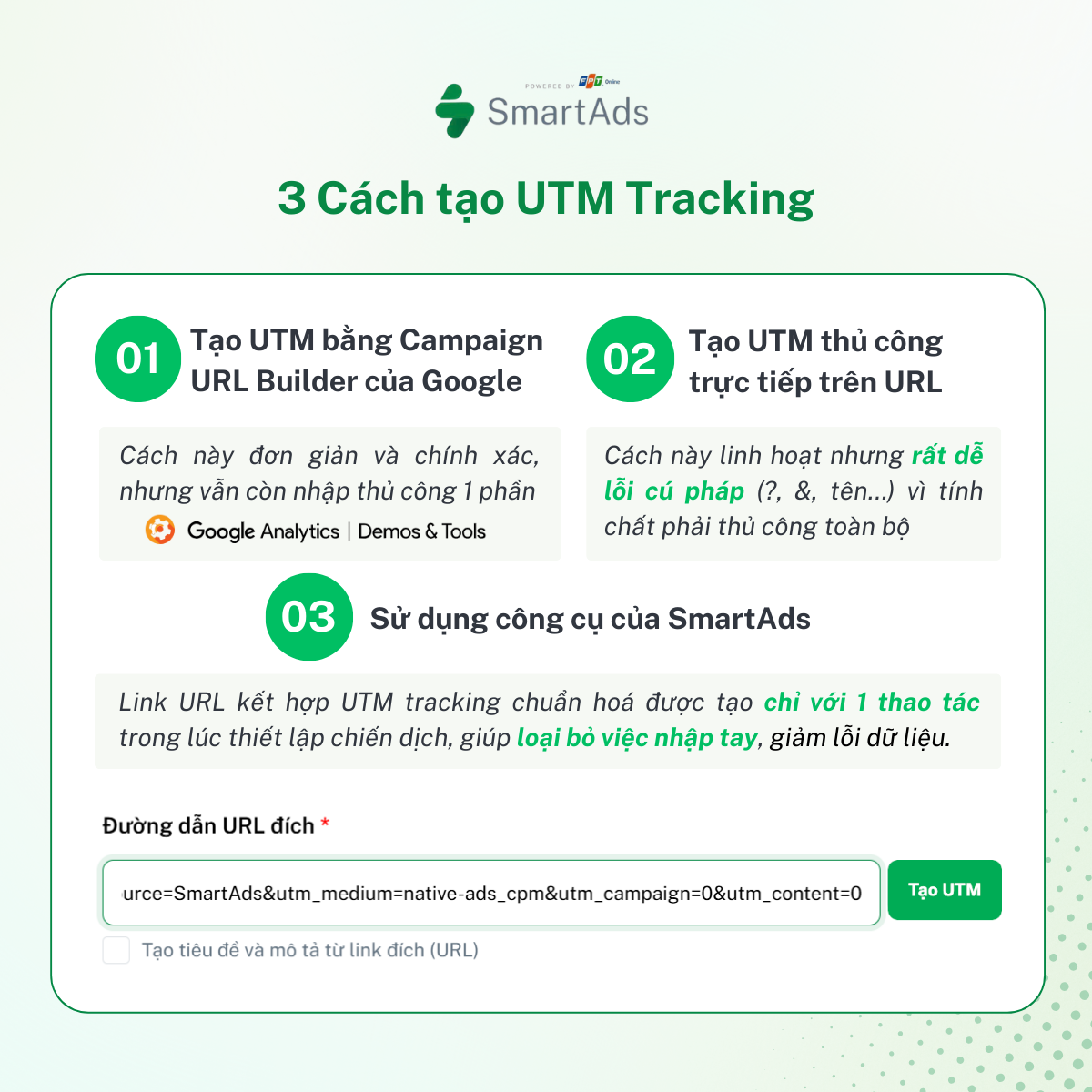
Method 1: Use Google’s Campaign URL Builder
Campaign URL Builder is Google’s official tool (Link: https://ga-dev-tools.google/campaign-url-builder/), allowing you to generate UTMs quickly while minimizing syntax errors. Simply enter fields such as URL, source, medium, campaign, content, and term, and the tool will automatically assemble a complete, valid tracking link.
Campaign URL Builder offers basic accuracy and convenience suitable for most users. However, as the number of links and campaigns grows, a more standardized and scalable approach becomes essential to ensure long-term consistency.
Method 2: Manually create UTM Parameters in the URL
You can manually append UTM parameters to a URL following the correct syntax.
Example: www.example.com/?utm_source=newsletter&utm_medium=email&utm_campaign=summer_sale
This method offers flexibility without relying on tools, but it is prone to errors: incorrect use of “?” and “&”, wrong parameter names, inconsistent capitalization, or extra spaces. Even a minor mistake can prevent UTM tracking and distort reporting, making this approach unsuitable for multi-channel campaigns or teams requiring standardized data.
Method 3: Automatically generate UTM Links in SmartAds with one click
Unlike manual approaches, SmartAds integrates an automatic UTM generator directly into the campaign setup interface.
>>> Discover SmartAds’ “magic button” here.
When creating a campaign on SmartAds, the URL field includes a “Create UTM” button. Once clicked, the system will:
-
Automatically populate source – medium – campaign – content parameters based on a standardized structure.
-
Suggest and normalize campaign names to ensure data consistency.
-
Generate a complete UTM link in a single step, directly attached to the ad without needing external tools.
This approach eliminates manual data entry, reduces up to 90% of UTM-related errors, and saves significant setup time. As a result, data is standardized from the start, enabling smoother and more accurate GA4 analysis.
Step 3: Validate Before Launch
This step is often overlooked, yet a single-character error can invalidate an entire report. Quick checks include:
-
First, open the UTM link in Incognito mode to simulate a new session and avoid interference from existing cookies.
-
Next, open Google Analytics 4 and verify that the session displays the correct source/medium/campaign values by interacting with the tagged ad or post.
Overall, correctly implementing UTM tracking not only clarifies channel performance but also builds a reliable data foundation. With standardized conventions, reports across GA4 and internal dashboards become clearer, easier to filter, and simpler to compare saving time while improving analytical accuracy.
4. How to view UTM Tracking reports in Google Analytics 4
Analyzing UTM reports in Google Analytics is a critical skill for accurately evaluating campaign performance. Follow these steps to access UTM data:
-
Step 1: Log in to Google Analytics and select the correct GA4 property used to track your website or landing page.
-
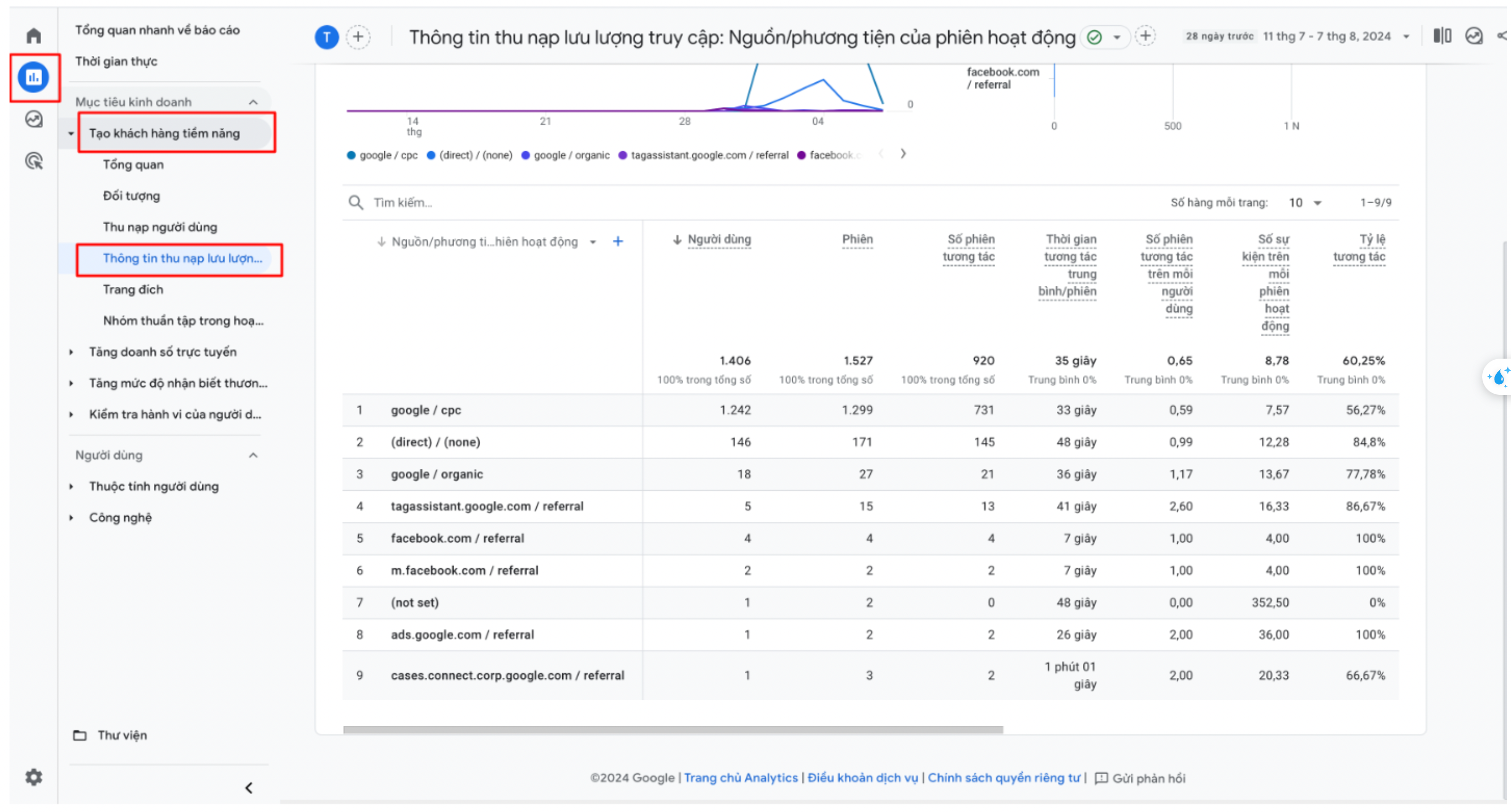
Step 2: From the left menu, go to Reports → Acquisition. Here, GA4 aggregates all traffic generated from marketing campaigns.
-
Step 3: In the Traffic Acquisition report, customize displayed dimensions to view detailed UTM data.
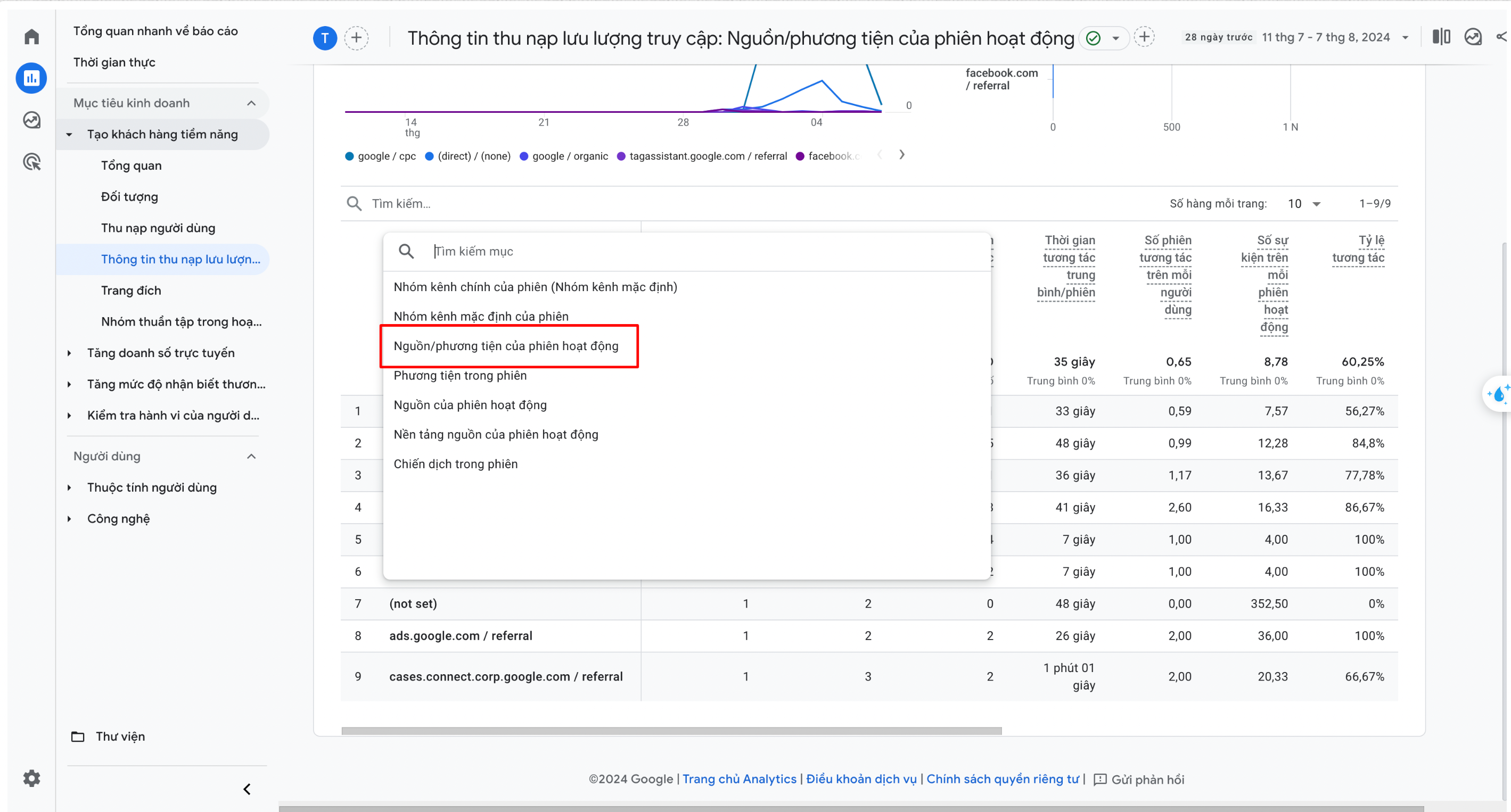
Change the default dimension from “Default channel grouping” to “Session source/medium” to view precise sources, channels, and campaigns tagged with UTM parameters.
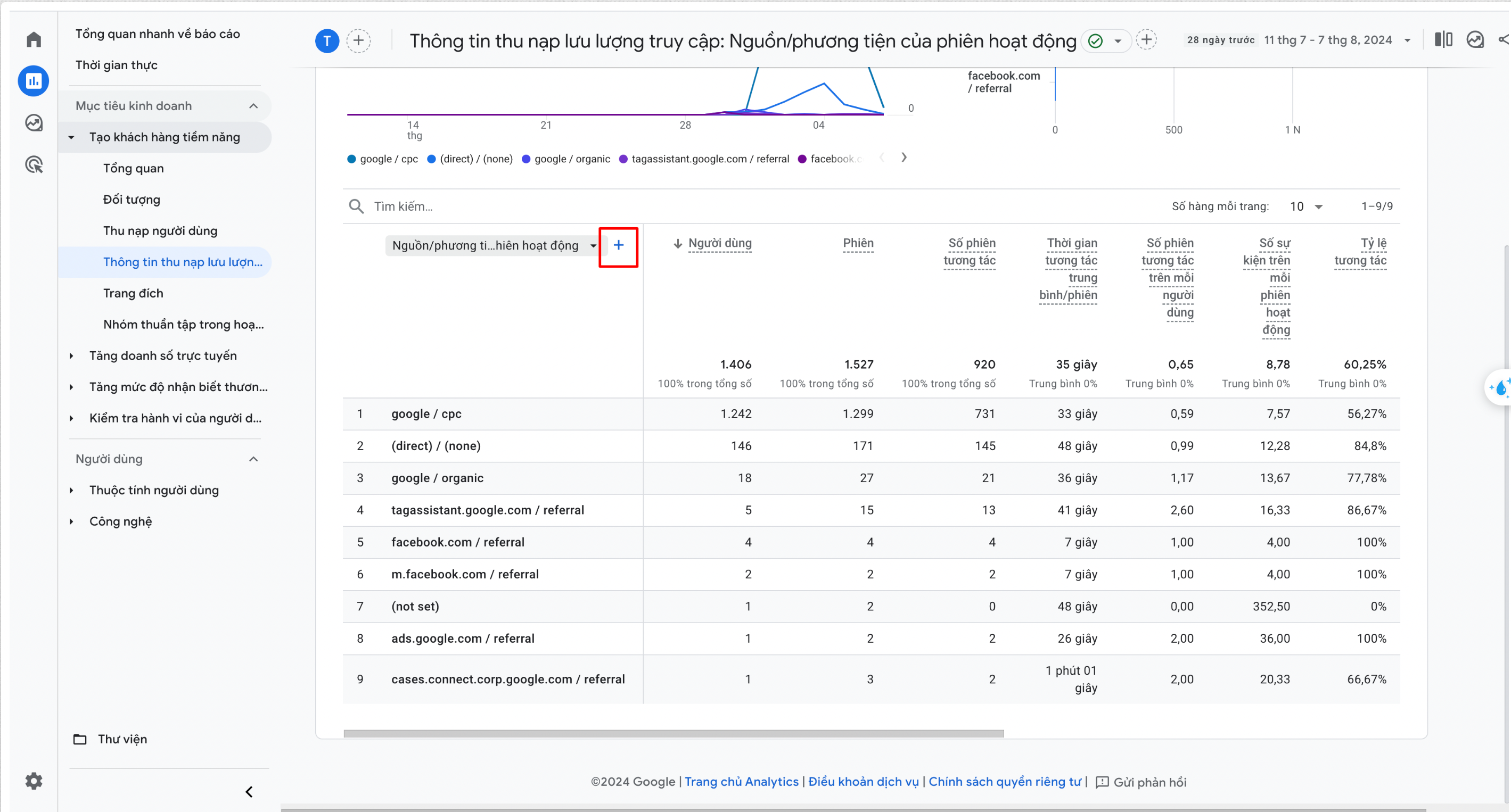
Additionally: You can select fields such as Session campaign, Session manual term (utm_term), or Session manual ad content (utm_content) to analyze performance at a deeper level—by campaign, audience segment, or creative variant. Combine these with metrics like Sessions, Active Users, Average Session Duration, Engagement Rate, Conversions, and Bounce Rate to identify which campaigns deliver real value.
-
Important notes when tracking UTMs in GA4: Data processing may take 24–48 hours. Avoid using UTMs on internal links to prevent attribution issues. Do not incorrectly combine UTMs with Google Ads auto-tagging.
5. Benefits of Using UTM Tracking in Advertising
UTM acts as an identification layer that enables precise performance tracking across touchpoints. By tagging URLs with UTM parameters, advertisers can follow the entire user journey—from ad exposure to on-site actions—allowing optimization of both costs and outcomes. Specifically:
-
Measure individual ad creative performance: When running multiple ad variations within a campaign, UTMs help clearly attribute traffic and results to each creative. One ad may drive high traffic, while another delivers stronger conversions—UTM data reveals which truly generates value, enabling smarter budget allocation.
-
Compare performance across advertising platforms: For brands advertising on Google, Facebook, or SmartAds simultaneously, UTMs provide an objective view of which platform contributes most to traffic, engagement, or conversions.
-
Understand post-click user behavior: UTMs capture more than clicks—they unlock insights into on-site behavior, including visited pages, time spent, and bounce rates, all linked back to the originating campaign.
Conclusion: Optimize Measurement with UTM Tracking and SmartAds Pixel
The combination of UTM Tracking and SmartAds Pixel provides a comprehensive view of customer interaction behavior—from traffic sources to conversions at every touchpoint. This enables businesses to better understand users and optimize strategies based on real customer journeys.
Simply sign up for SmartAds and start your campaign to generate UTMs directly within the interface—no manual setup or external tools required—making measurement faster, cleaner, and more consistent.