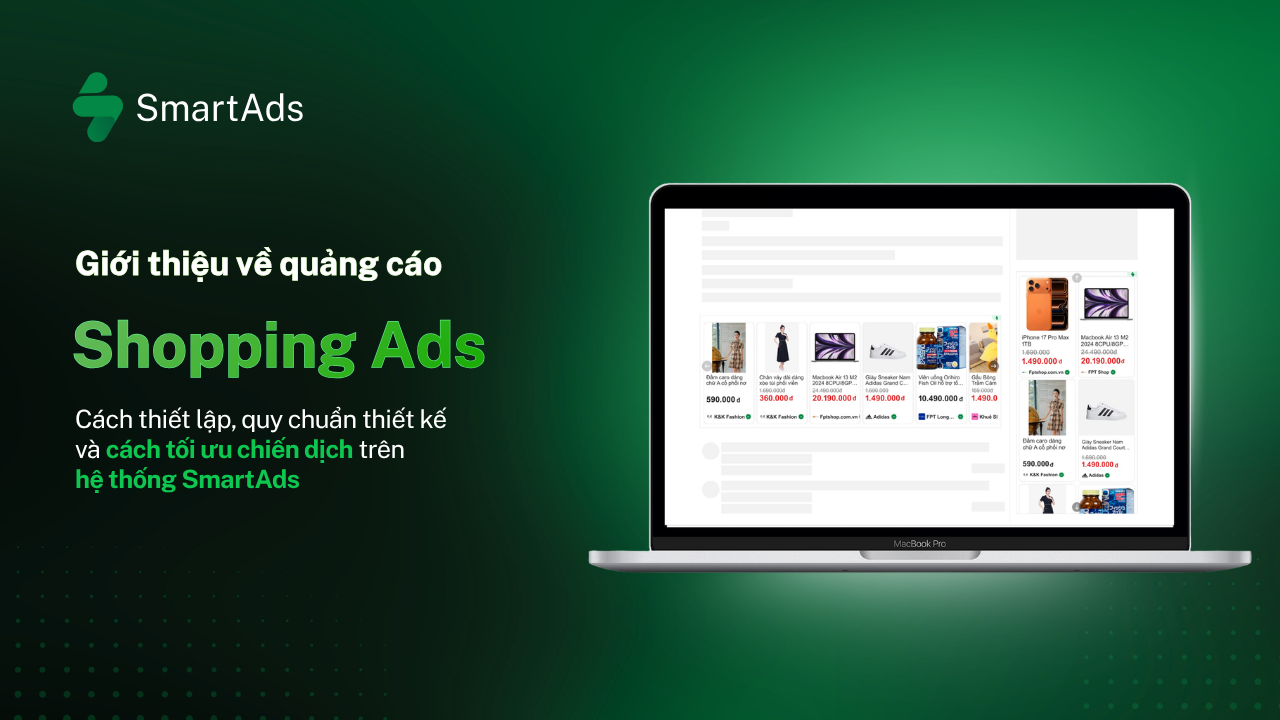
I. Introduction to Shopping Ads on the SmartAds platform
Shopping Ads (also known as Product Ads) are an ad format that showcases products directly across SmartAds’ digital publisher network. Unlike traditional ad formats that only display images or text, Shopping Ads present comprehensive product information—including product name, image, price, and brand—within the ad placement.
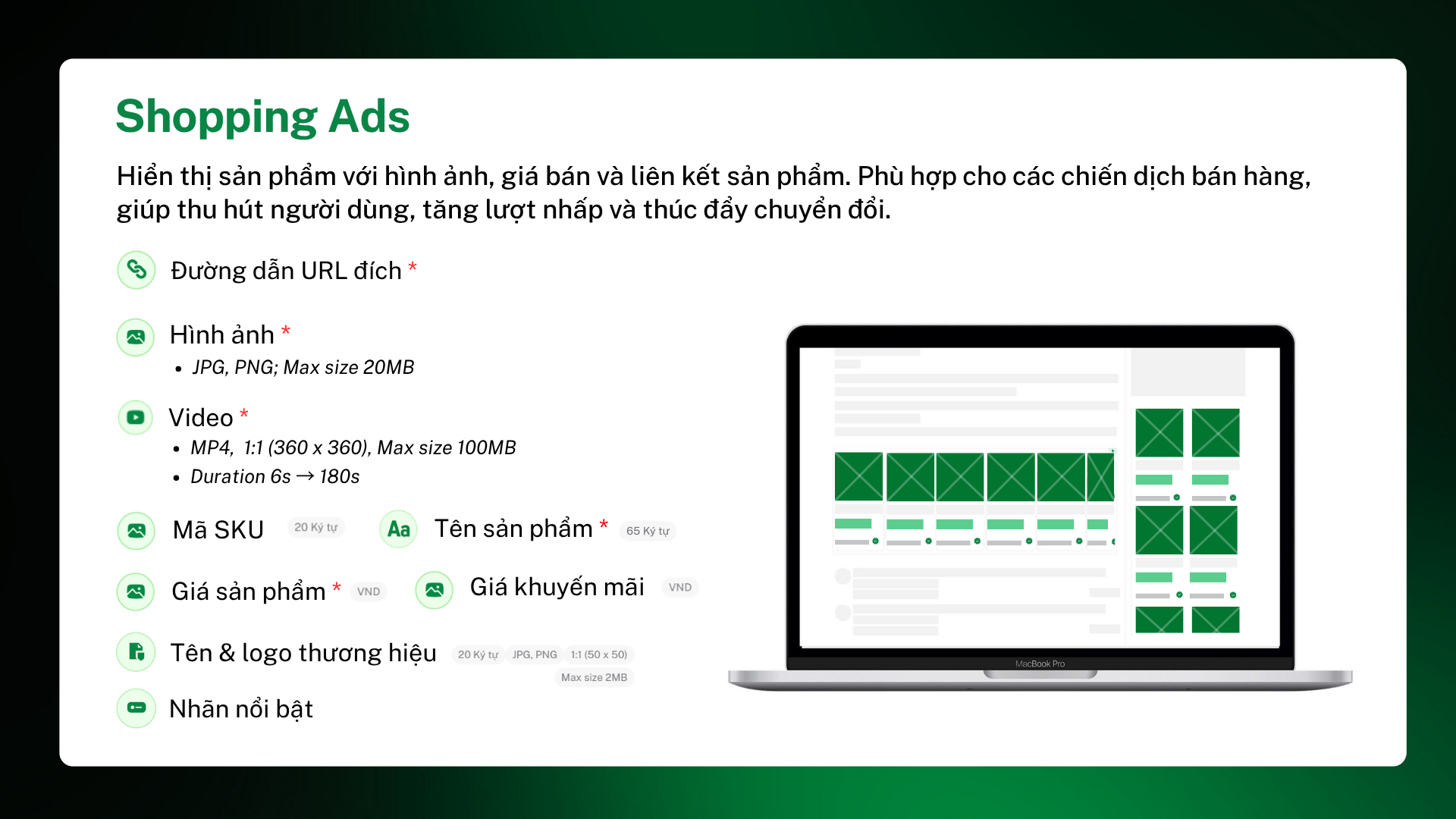
With this format, users can quickly view product details and navigate to the purchase page with just one click—shortening the journey from ad exposure to conversion. This format includes two key characteristics:
1.1. Shopping Ads are ideal for conversion-driven and sales-focused campaigns
Shopping Ads on SmartAds are designed to support campaigns focused on conversions and revenue growth. This format enables products to appear directly in front of users with real visuals, pricing, and purchase links—leading to higher click-through rates and stronger purchase intent compared to standard display ads.
Shopping Ads are particularly suitable for the following campaign types:
-
Conversion Campaign: Increase conversion rates and drive users to take immediate purchase actions after viewing the ad.
-
E-commerce Campaign: Ideal for e-commerce brands looking to promote individual products or product categories directly to users across publisher sites.
-
Affiliate Marketing: Enables affiliates to showcase products with direct purchase links in a visual format, improving conversion from content to transaction.
-
Performance Marketing: Optimize advertising performance based on key metrics such as CTR, CPC, and conversion rate—especially effective for product-level performance tracking.
One of the key strengths of Shopping Ads is the ability to deliver product information directly within the ad interface. When product visuals, pricing, and branding are clearly displayed, users are more likely to trust the ad and proceed to the product page. This not only improves traffic quality but also enhances overall conversion performance.
1.2. High-visibility placements across publisher network
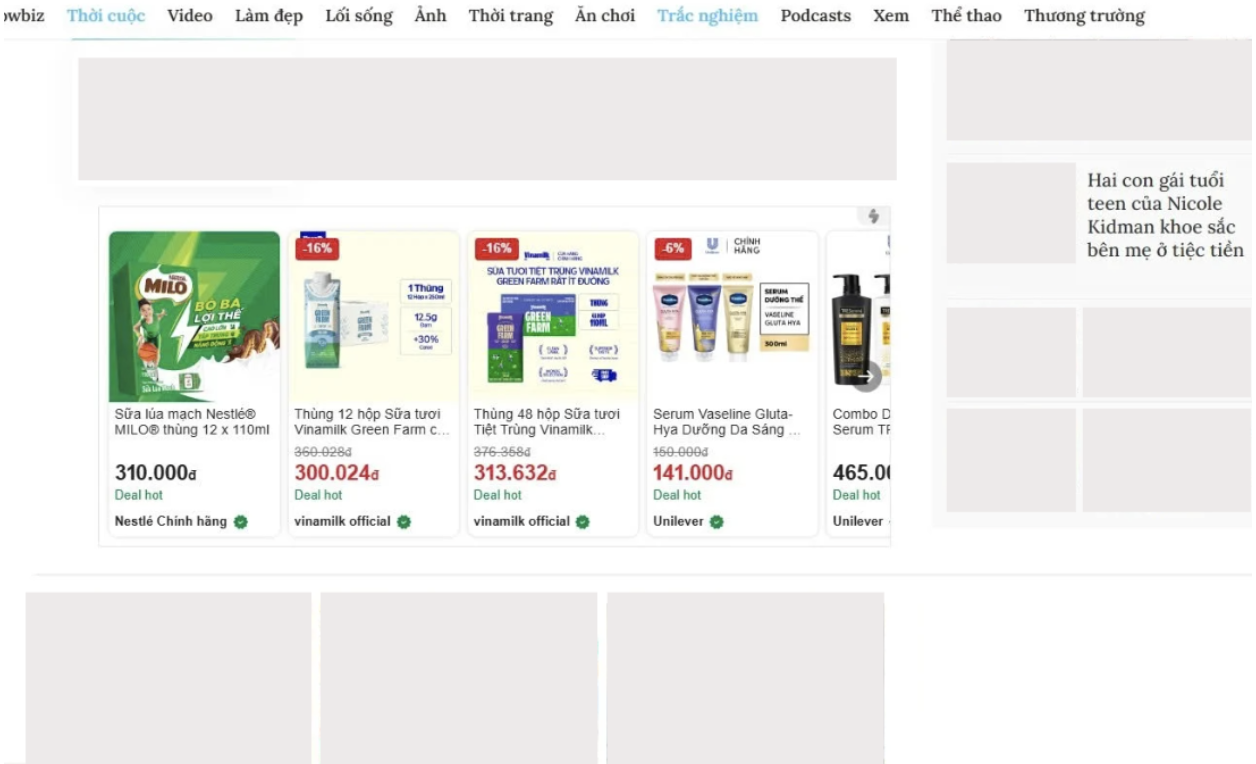
Shopping Ads on SmartAds can be distributed across multiple high-impact placements on publisher sites, depending on each publisher layout and selected inventory package, including:
-
In-comment: Ads appear within the comment section—where users are already highly engaged with content.
-
Breakpage: Ads are shown on content break pages, capturing attention during page transitions.
-
Sponsor Box: Displayed within sponsored content sections, suitable for branding and message delivery campaigns.
II. How to set up Shopping Ads on SmartAds
Businesses can launch Shopping Ads campaigns on SmartAds by following these steps:
Step 1: Click the “Create Campaign” button
Step 2: Select the “Shopping Ads” format
Step 3: Name your campaign and choose the appropriate objective
Step 4: In the Ads* section, click “Add Ad”. To change the ad format, click “Change”
Step 5: In the *Product Setup section, fill in all required fields marked with a red asterisk, including product image, URL, product name, price, etc.
Step 6: Click “Add Product” if you have more than 5 items. Each creative supports up to 100 products.
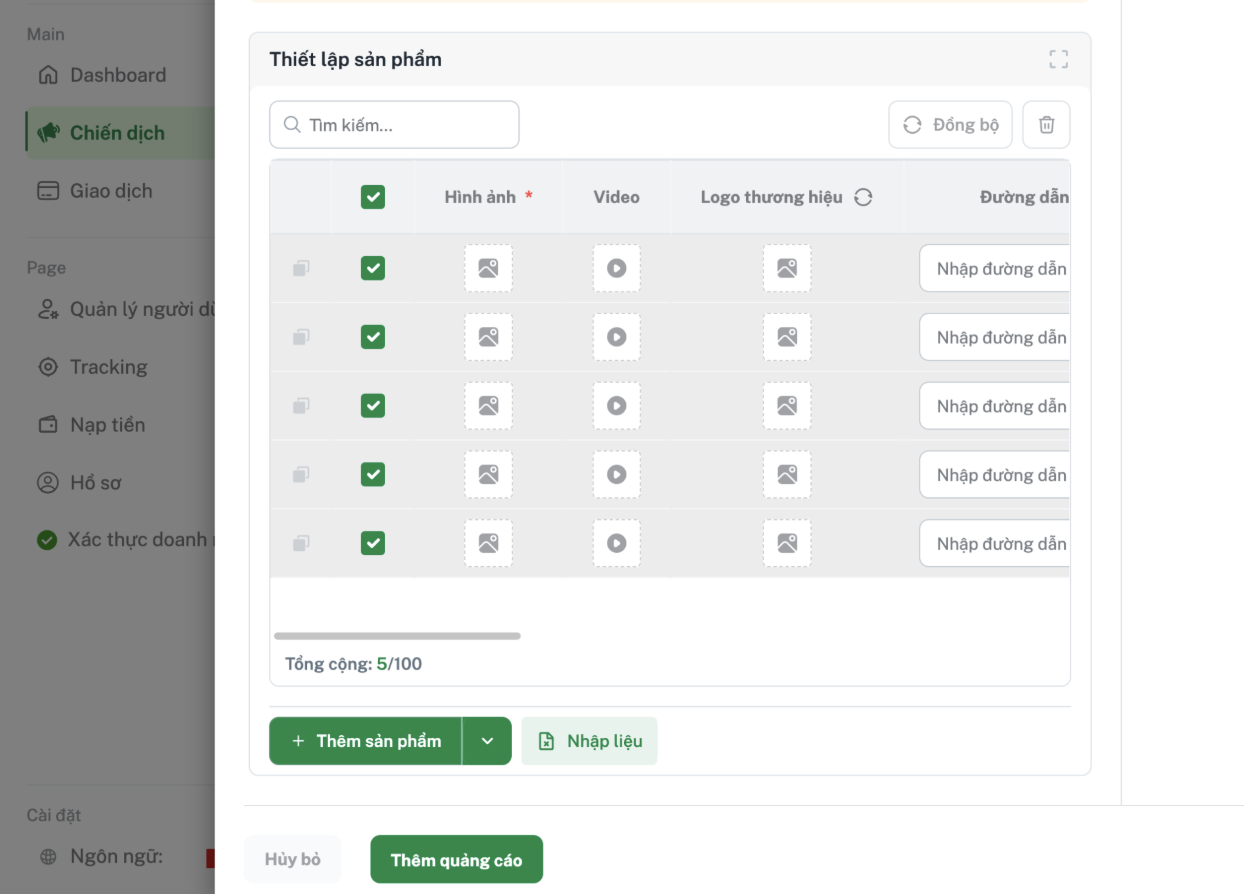
Step 7: After completing the *Product Setup, click “Add Ad” to finalize.
Step 8: In the *Audience & Targeting section, select appropriate emotional targeting and audience segments
Step 9: Set your budget and bid
Note: Ensure your account has sufficient balance and valid advertising permissions before launching the campaign.
III. Content and design specifications for Shopping Ads
On the SmartAds platform, Shopping Ads are a flexible product-based advertising format that allows advertisers to use images or videos combined with pricing and purchase links—helping users quickly understand product information and navigate to the detail page with a single click. To ensure optimal delivery and display, all content and design elements must comply with the following specifications:
3.1. Destination URL
The URL directs users to the product detail or purchase page. It must be functional, relevant to the advertised product, and free of redirect errors.
3.2. Product name
Maximum length: 65 characters. The name should be clear, concise, and accurately represent the product to improve click-through rates.
3.3. Product image or video
*Product image
-
Format: JPG, PNG, WEBP.
-
Aspect ratio: 1:1 (square).
-
Recommended size: 300 x 300 px.
-
Maximum file size: 20MB.
-
Images should be sharp, highlight the main product, and avoid excessive text or clutter.
*Product video (if available)
-
Format: MP4.
-
Recommended ratio: 1:1 or 4:5.
-
Recommended duration: 6–15 seconds.
-
Maximum file size: 20MB.
-
Videos should showcase the product clearly from the first few seconds to capture attention.
-
Content should be concise, easy to understand, and focused on key product benefits.
3.4. SKU (Stock Keeping Unit)
Maximum length: 20 characters. Used for product identification in management systems or ad performance tracking.
3.5. Product price
-
Currency: VND.
-
Display the official selling price to help users evaluate before clicking through.
3.6. Promotional price (if applicable)
-
Applicable when the product is on promotion.
-
Promotional pricing increases attractiveness and purchase intent.
3.7. Brand name and logo
-
Brand name: maximum 20 characters.
-
Logo format: JPG, PNG.
-
Aspect ratio: 1:1.
-
Recommended size: 50 x 50 px.
-
Maximum file size: 2MB.
-
Logos should be clear and recognizable to build trust.
3.8. Highlight tag
-
Additional labels that emphasize product advantages such as Hot deal, Best seller, Discount, New arrival.
-
These tags help capture attention and increase engagement.
-
All elements must be fully prepared and compliant to ensure optimal ad delivery and maximize conversion performance.
IV. How to track Shopping Ads performance on SmartAds
Once your ads are live, you can monitor performance metrics such as impressions and engagement via the Campaign Manager or Dashboard.
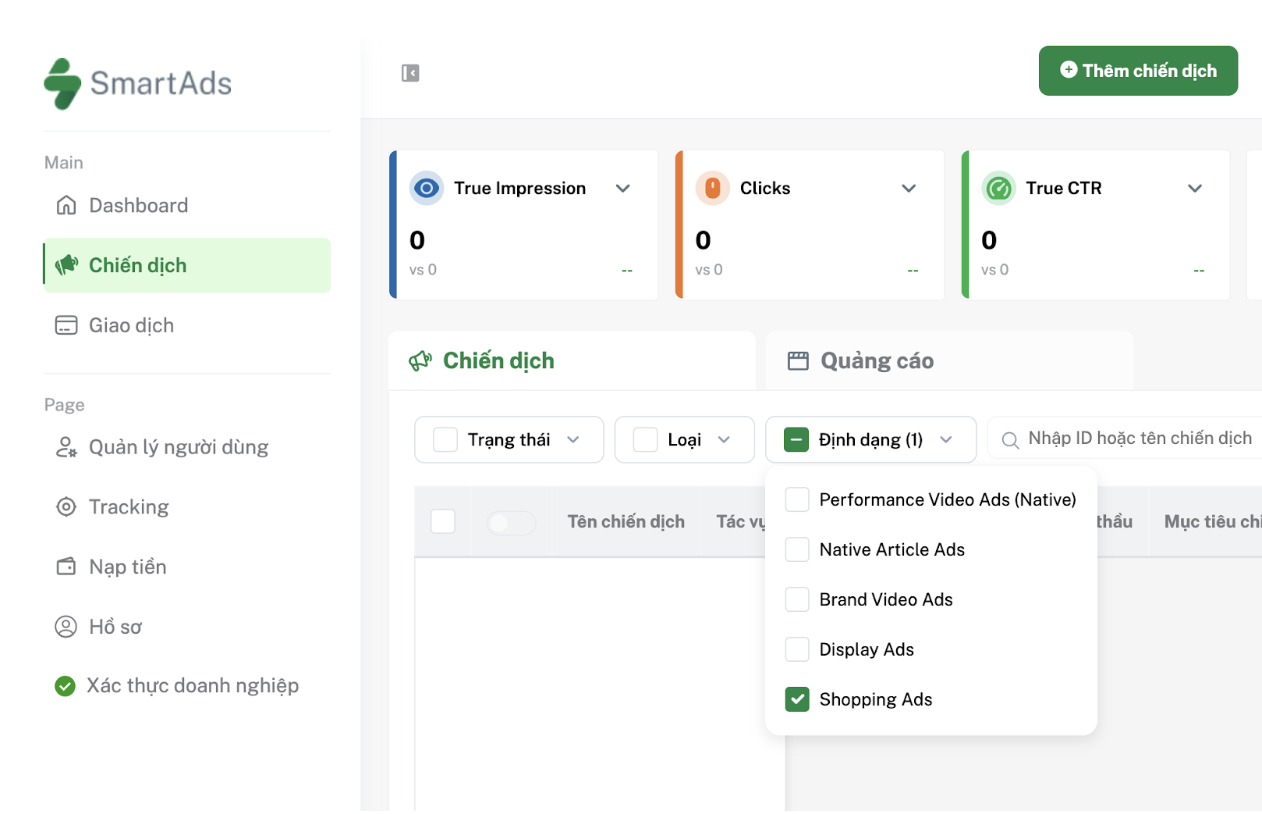
Here, you can filter by Shopping Ads format and scroll horizontally to view reports. For deeper insights at campaign or creative level, click the corresponding icon in the action bar to access detailed reports.
V. How to optimize Shopping Ads campaigns
To maximize the performance of Shopping Ads on SmartAds, advertisers should consider:
-
Use high-quality product visuals or videos that capture attention instantly: Visuals are the most critical factor influencing clicks.
-
Keep product names concise and relevant: Avoid overly long or vague titles. Focus on product name + key selling point.
-
Display pricing clearly and attractively: Users often decide to click based on price. Highlight promotions to boost CTR.
-
Leverage highlight tags (Hot deal, Discount, Best seller, New arrival): These increase visibility and click probability.
-
Optimize and align landing pages: Ensure fast loading, mobile optimization, and consistency between ad and landing page content (images, price, messaging) to improve trust and conversions.
-
Run A/B testing: Test different product images, titles, and price points to identify top-performing variations.
-
Monitor key performance metrics: Combine impressions, clicks, CTR, CPC, and conversion rate to continuously optimize performance.
-
Comply with advertising policies: Ensure creatives and landing pages meet platform standards for stable delivery.
VI. Shopping Ads (Product Ads) pricing, effective from April 2026
Pricing for Shopping Ads format (VAT included):
|
Minimum CPC bid (VAT included) |
Site/Group |
| 2,200 - 3,300 | All websites |
| 3,300 |
All websites (Overseas targeting only) |
| 4,400 |
Premium websites (e.g., VnExpress, Dan Tri, Thanh Nien, Tuoi Tre...) |
| 3,300 |
English premium websites (English sites) |
| 5,500 |
VnExpress sites (including VnExpress.net group 2 & Ngoisao.VnExpress.net) |
| 4,400 |
e.VnExpress site (English site e.vnexpress.net) |
| 3,300 |
Ngoi Sao (Ngoisao.VnExpress.net) |
*Note:
SmartAds applies a fixed bidding mechanism. The listed prices are for reference only and represent the minimum floor bid on the SmartAds platform. Actual campaign costs may vary depending on ad format, placement, booking period, and specific publisher inventory.