1. How to add UTM Parameters to advertising URLs on SmartAds
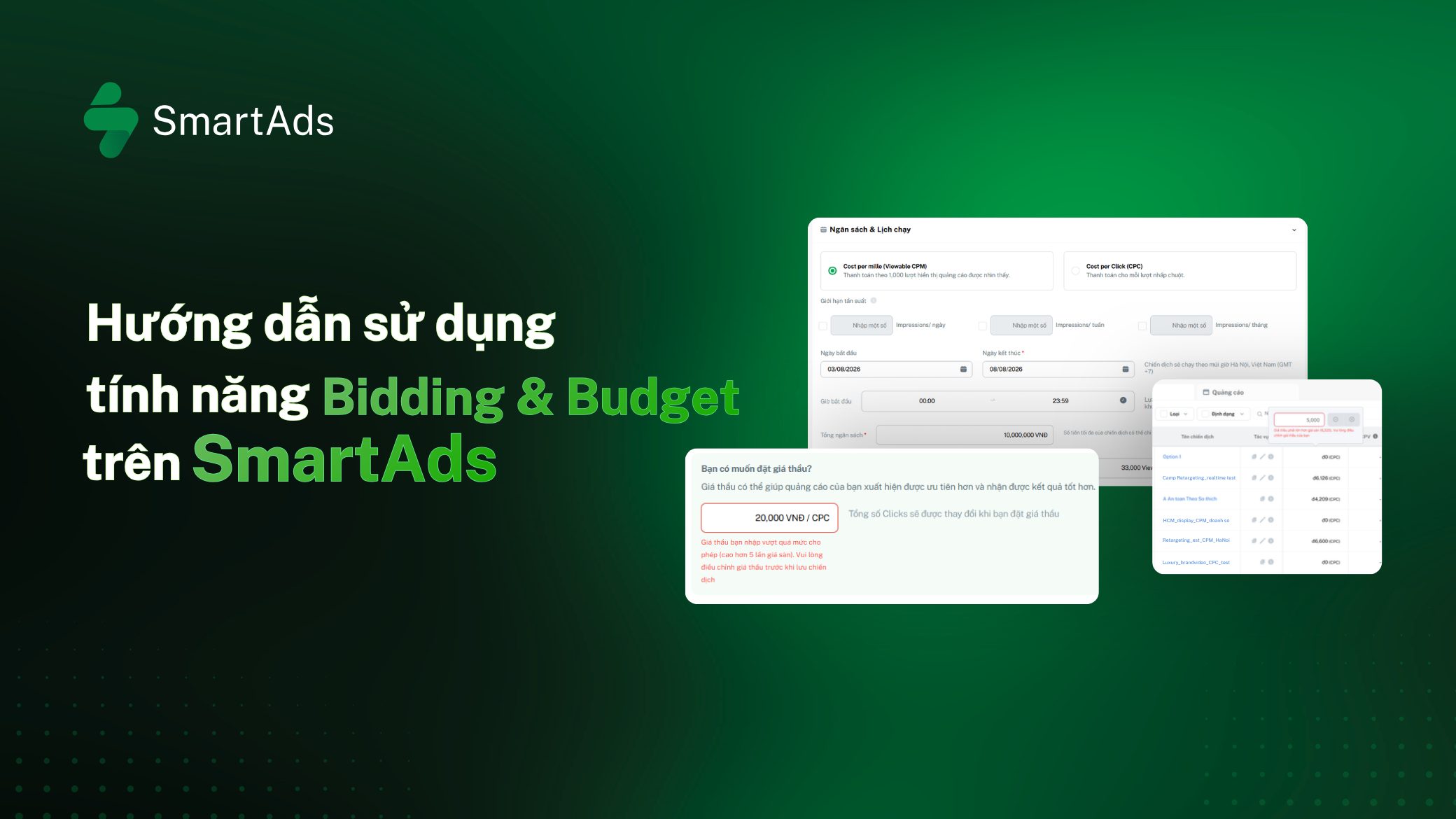
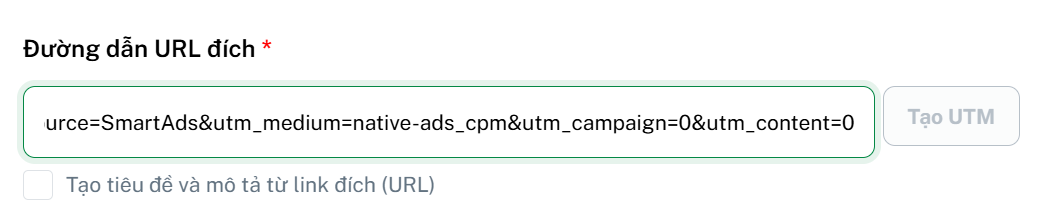
On the SmartAds campaign creation page, when adding an ad creative, enter the destination URL in the "Destination URL" field and click the  button. The system will automatically append the appropriate UTM parameters based on each ad placement.
Why is UTM tracking necessary?
-
UTM tracking helps measure the performance of each individual ad creative. Advertisers can easily analyze traffic sources and user behavior on their websites through tools such as Google Analytics, enabling more accurate traffic analysis and advertising effectiveness evaluation.
-
In addition, UTM tracking allows detailed monitoring by campaign, source, and content, providing valuable insights for campaign optimization and conversion tracking.
2. How to set up SmartAds Pixel Code
a. Overview of SmartAds Tracking Pixel Code
The SmartAds Pixel Code is a tracking script used to measure advertising effectiveness and monitor conversions on your website. Advertisers who implement this tracking code can access key metrics such as:
- Avg. time on site (s)
- Avg. deeprolls (%)
- Sessions
- Pageviews
- Events (sign_up, add_to_cart, begin_checkout, generate_lead, purchase, view_promotion)
- CPA (Cost per Action): Total ad spend divided by the number of recorded events
Note: The Events metric (automatically collected by the system) and CPA (Cost per Action) are currently in the testing phase.
b. How to install the SmartAds Pixel Code
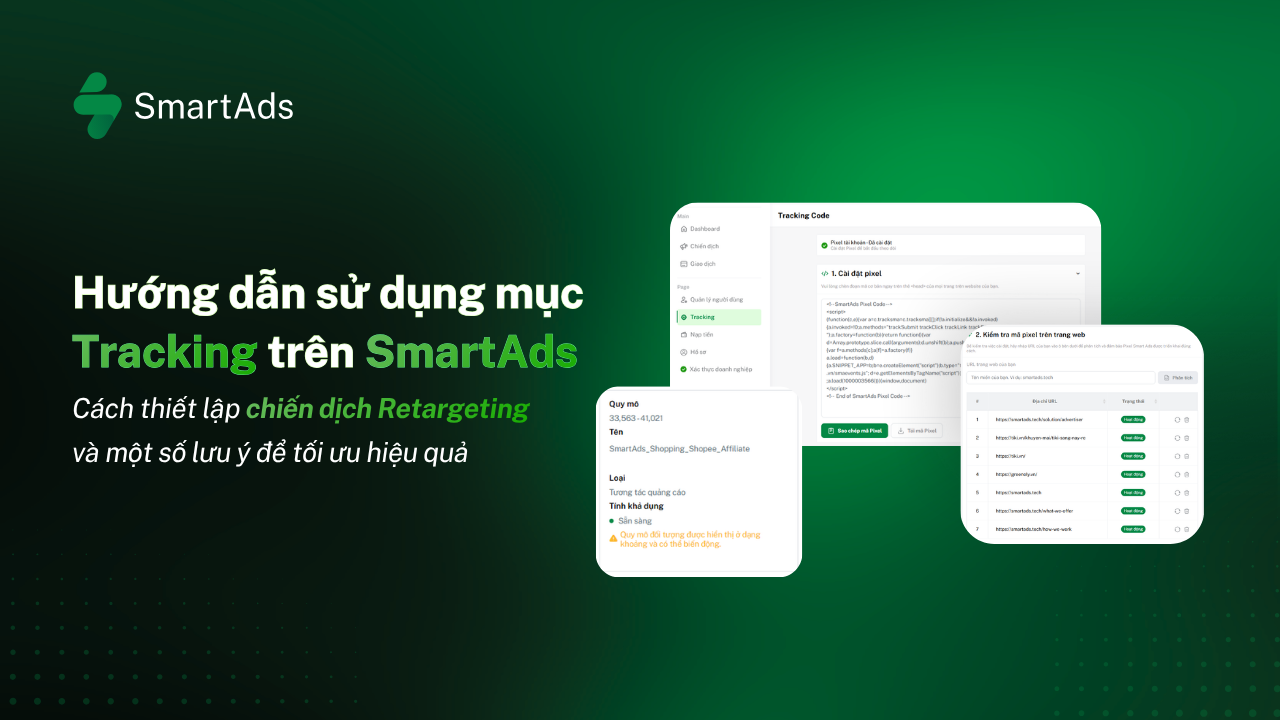
Step 1: First, go to the  tab or access the Tracking Conversion page.
Step 2: In the section "1. Pixel Setup" , click "Copy Pixel Code" or "Download Pixel Code". Giao diện mục 1 như hình dưới:
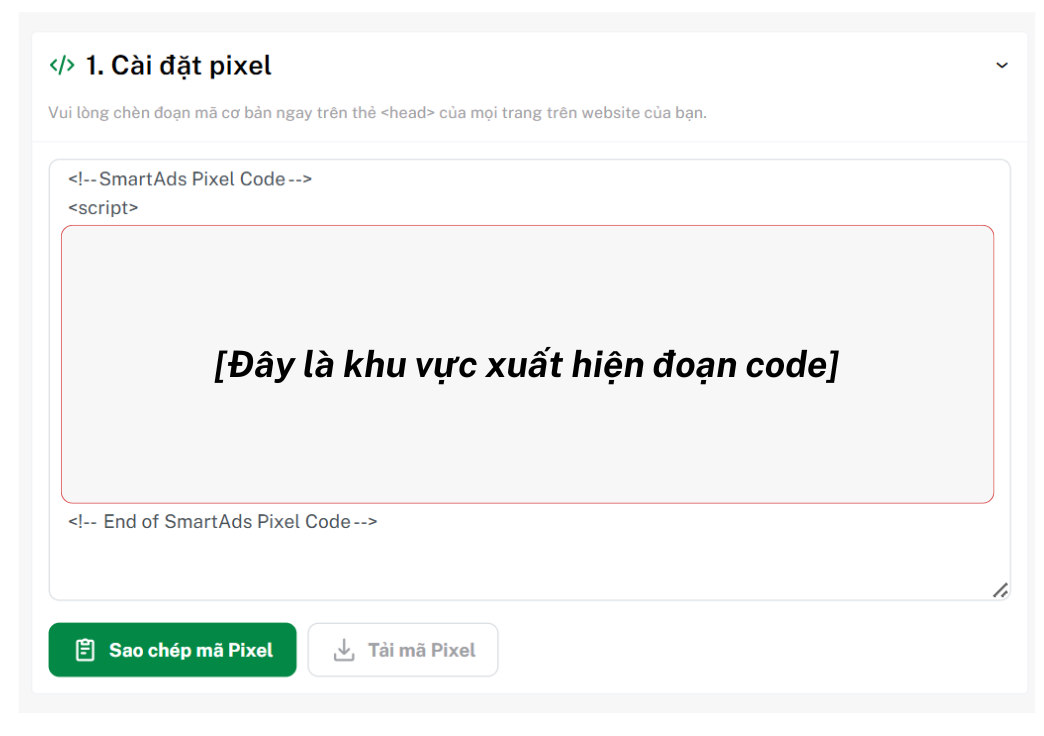
Depending on your implementation needs, you can choose one of the following two options:
- Case 1: Installing the pixel code directly on your website — send this code to your IT or technical team to embed it into the website. Note: The pixel code must be placed immediately above the tag on all pages you want to track for accurate conversion tracking.
- Case 2: Installing the pixel code via Google Tag Manager (GTM) — follow these steps:
-
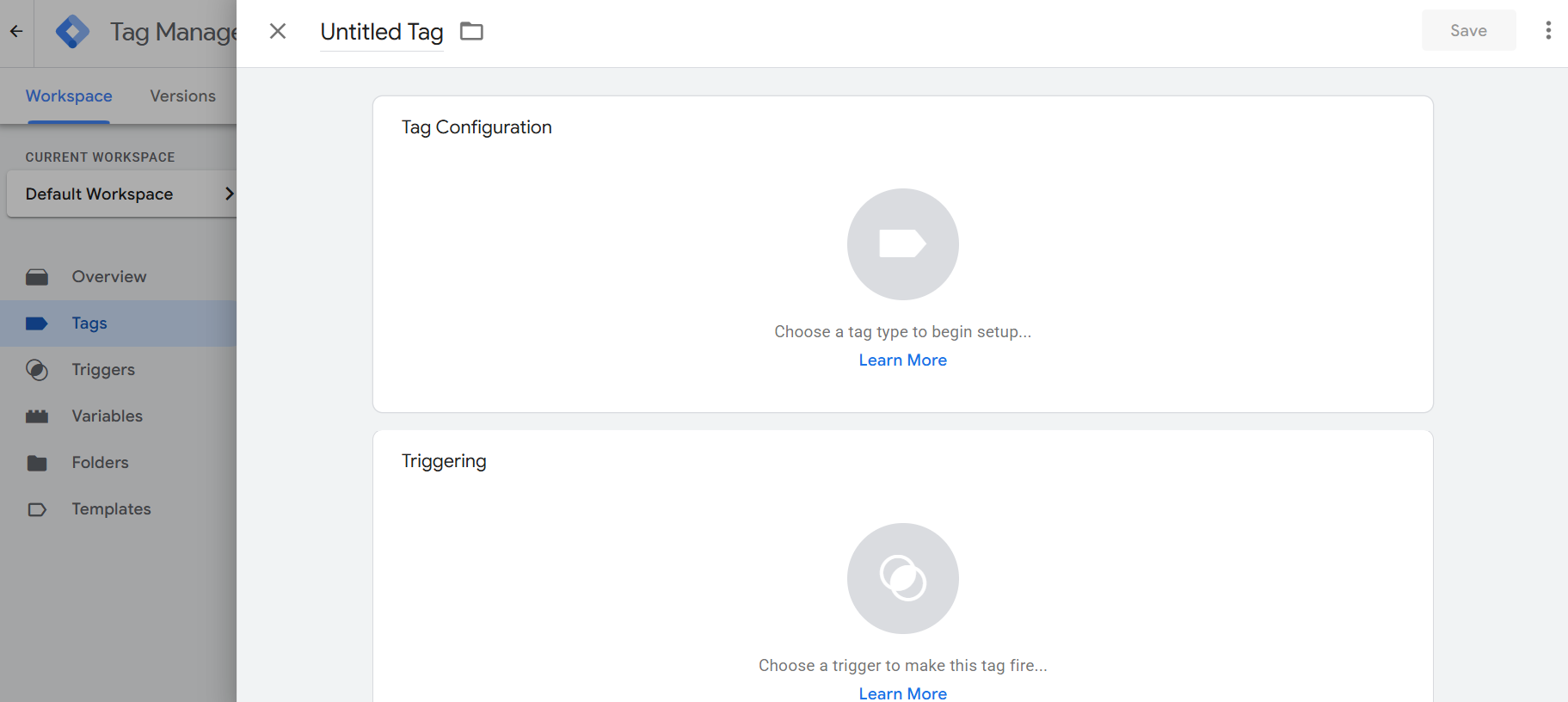
Log in to your GTM account → Go to "Tags" → Click "New" to create a new tag.
-
-
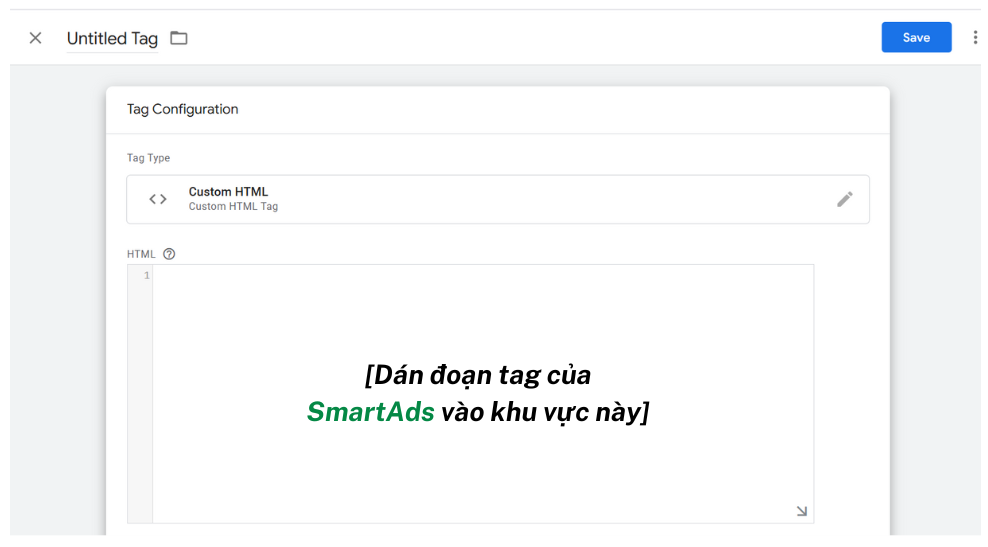
In the Tag Configuration section, select the tag type "Custom HTML", then paste the SmartAds Pixel code into the HTML content field.
-
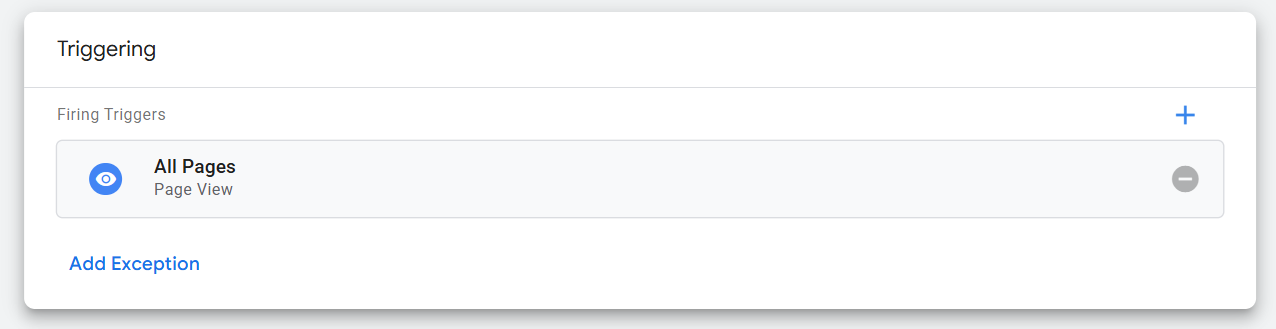
Still in the Tag Configuration section, scroll down to "Triggering", click and select All Pages (or create a custom trigger if needed).
-
Click
 to save and publish the container.
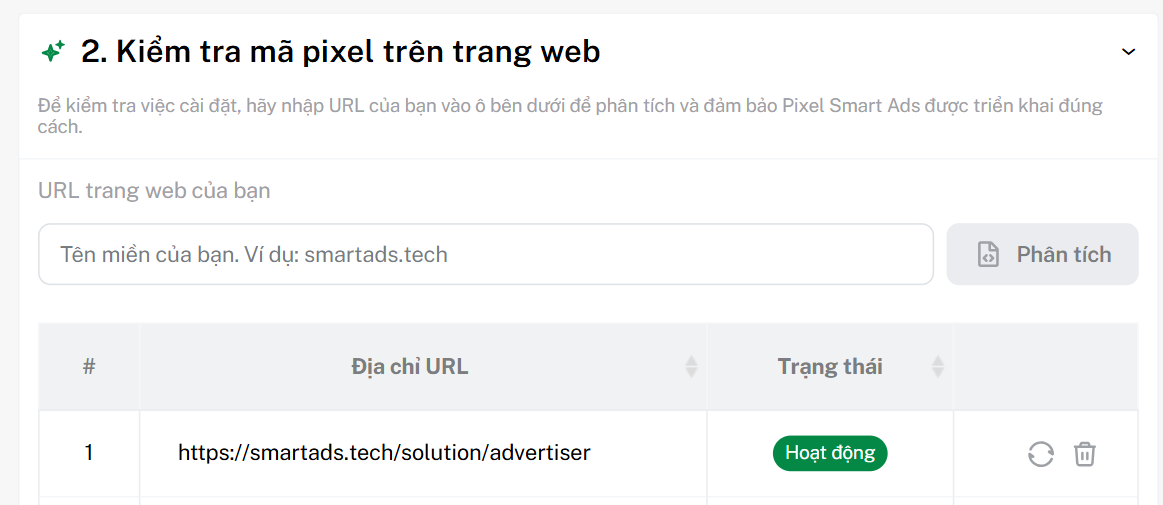
Step 3: For both methods above, you can verify whether the pixel has been installed successfully by entering your website URL into "2. Verify pixel installation on website". If the URL shows the status "Active", the SmartAds Pixel has been implemented correctly.
3. Why do SmartAds and Google Analytics 4 data not match?
Data discrepancies between advertising platforms and Google Analytics 4 (GA4) are common and can occur due to the following reasons:
- Differences in measurement methodology and algorithms: SmartAds records each ad click, while GA4 only counts successful website sessions. If the network is slow, the website fails to load, or users exit before the session is established, GA4 may not record that interaction.
- Incorrect or missing UTM parameters: In this case, GA4 may classify the traffic source as direct, leading to inaccurate attribution for SmartAds campaigns.
To ensure consistent, high-quality data and more accurate insights into user behavior, advertisers should:
-
Make sure the reporting date range is correctly selected
-
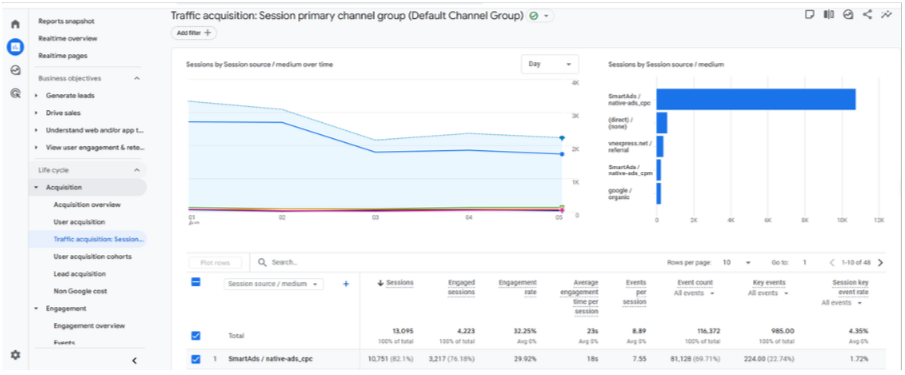
To view full traffic sources in GA4: go to Reports → Life Cycle → Traffic acquisition, then select Session source / medium. The GA4 interface displaying traffic sources after successful tracking setup is shown below: